Configuring the Material Indicator LED (PlasTell and CarpeTell)
You can assign specific LED colours on the machine to different plastic materials, making the scanning process faster and more intuitive. For example, the machine can be configured to show purple for PET and blue for PE. The colour assignments are fully customisable, so you can set them up in any way that works best for your workflow. For instance, you might choose to display green for materials you want to keep and red for those you wish to reject.
If the video does not start, use this
Before you begin
Step 1 - Find your instrument
Phone/Tablet version | Desktop version |
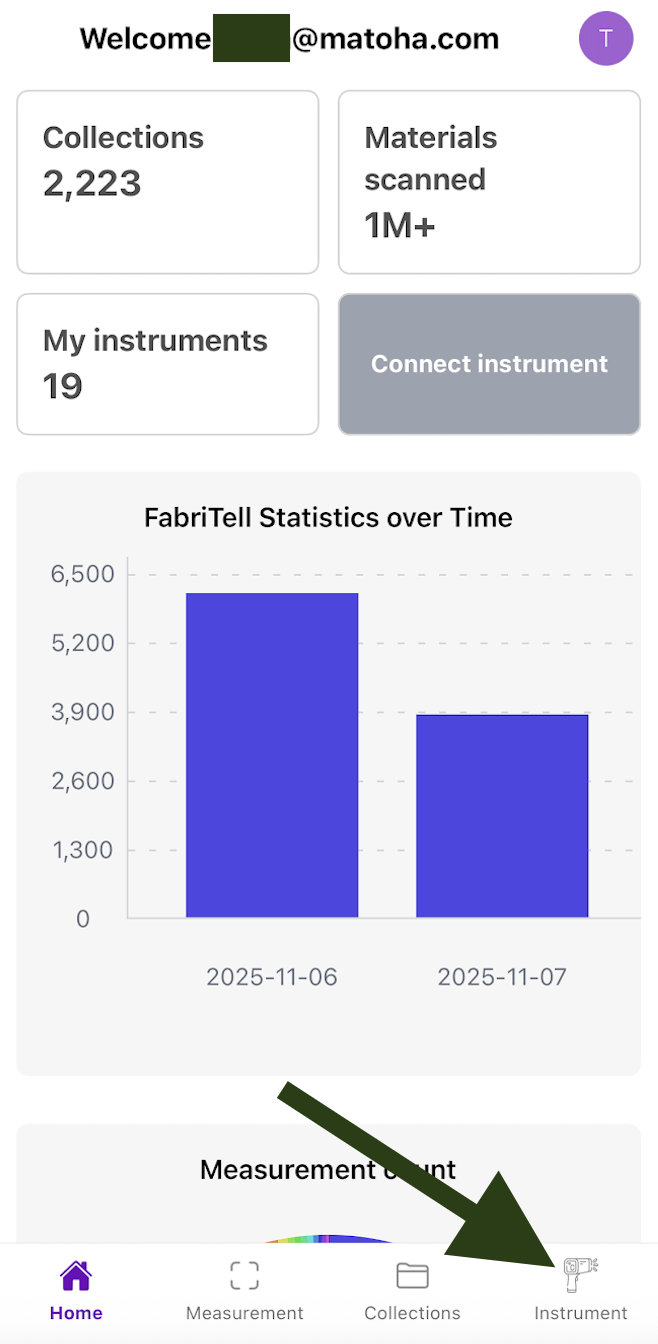
Go to your instruments from the menu at the bottom of your screen.
Your screen will then show you all the devices connected to your account. Check which machine you want to configure and press the "Materials" icon. If you can't see your machine here, you need to add it to your account first (➕ Adding an Instrument to your Account).
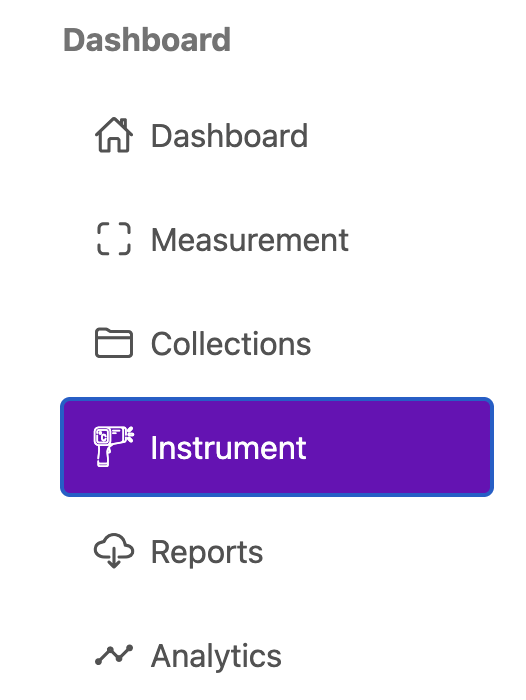
| Go to your instruments from the menu on the side.
Your screen will then show you all the devices connected to your account. Check which machine you want to configure and press "Edit Materials". If you can't see your machine here, you need to add it to your account first (➕ Adding an Instrument to your Account).
|


Step 2 - Assign colours to different materials
Phone/Tablet version | Desktop version |
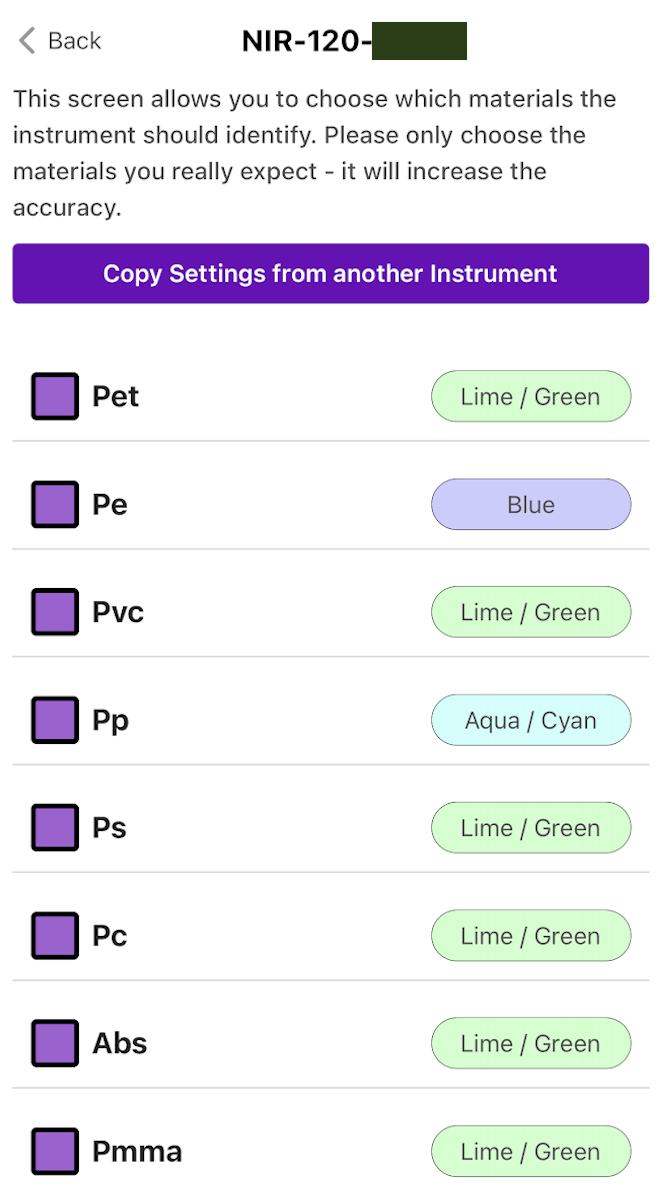
The screen below shows the colours assigned to the various materials. You can also choose which materials should be identified (see 📄 Enabling and Disabling Materials (PlasTell and CarpeTell) ).
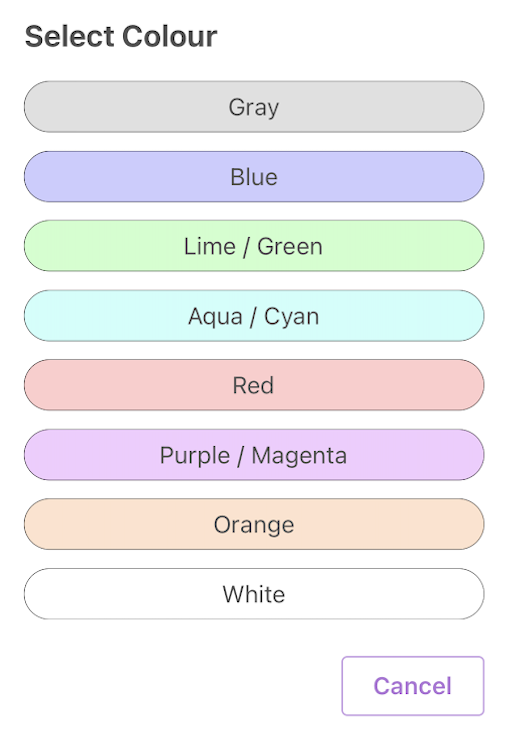
To make your spectrometer LED show a specific colour for a particular material, tap on the current LED colour and choose the colour you want.
Then, scroll to the bottom of the list of materials and select "Save materials" to keep your changes. | The screen below shows the colours assigned to the various materials. You can also choose which materials should be identified (see 📄 Enabling and Disabling Materials (PlasTell and CarpeTell) ).
To make your spectrometer LED show a specific colour for a particular material, tap on the current LED colour and choose the colour you want.
Then, scroll to the bottom of the list of materials and select "Save materials" to keep your changes. |
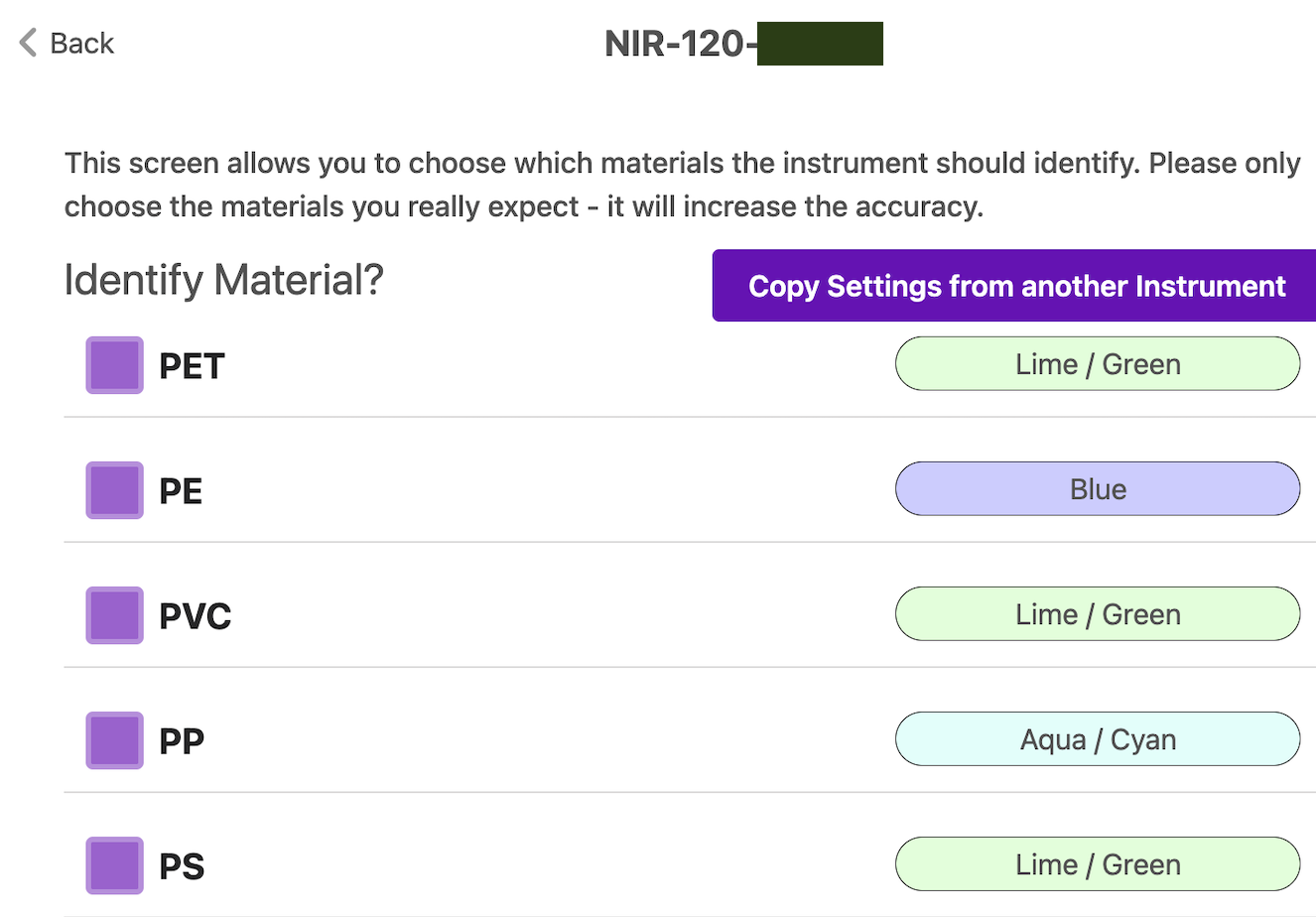
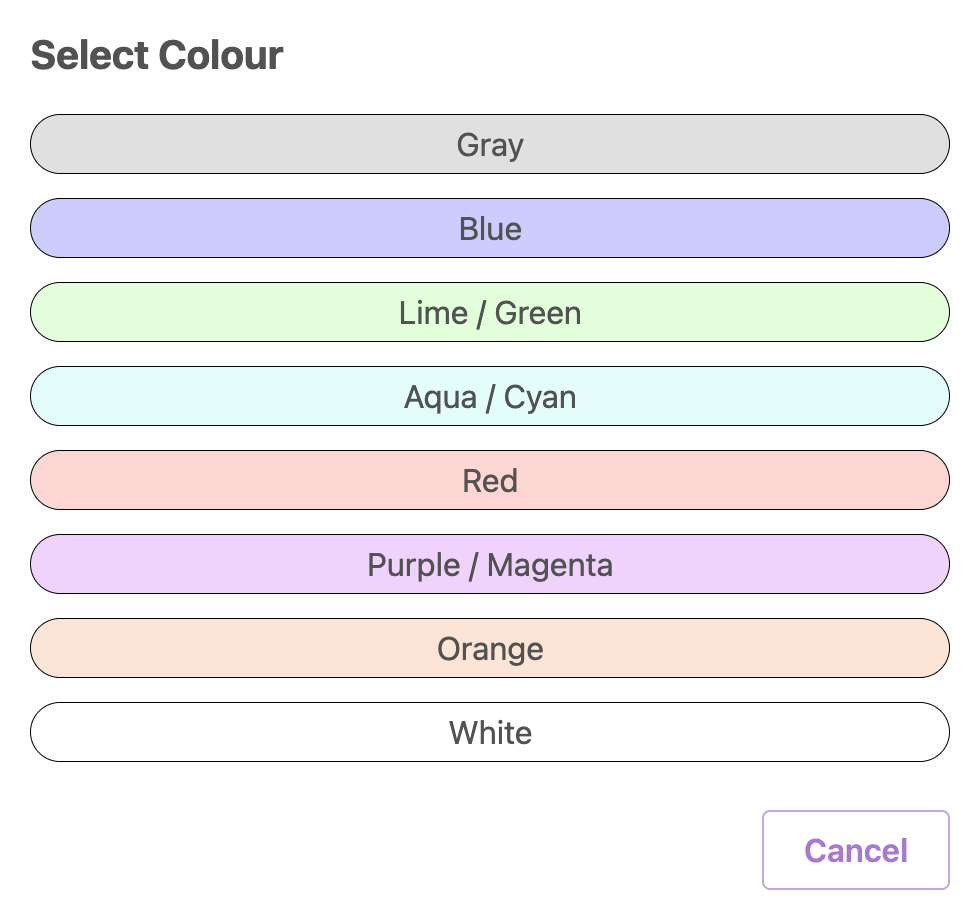
Note that you can assign the same colour for multiple materials!
Then, restart your device and your machine will be ready for use, showing your desired colours.