Adding an Instrument to your Account
If the video does not start, use this link.
Each instrument needs to be associated with a user account - this enables you to change the instrument settings, calibrate it and view its measurement statistics.
Step 1 - Open the app or the web app
Please open our app - see this guide if you haven't installed it yet or have not opened the desktop version of the app.
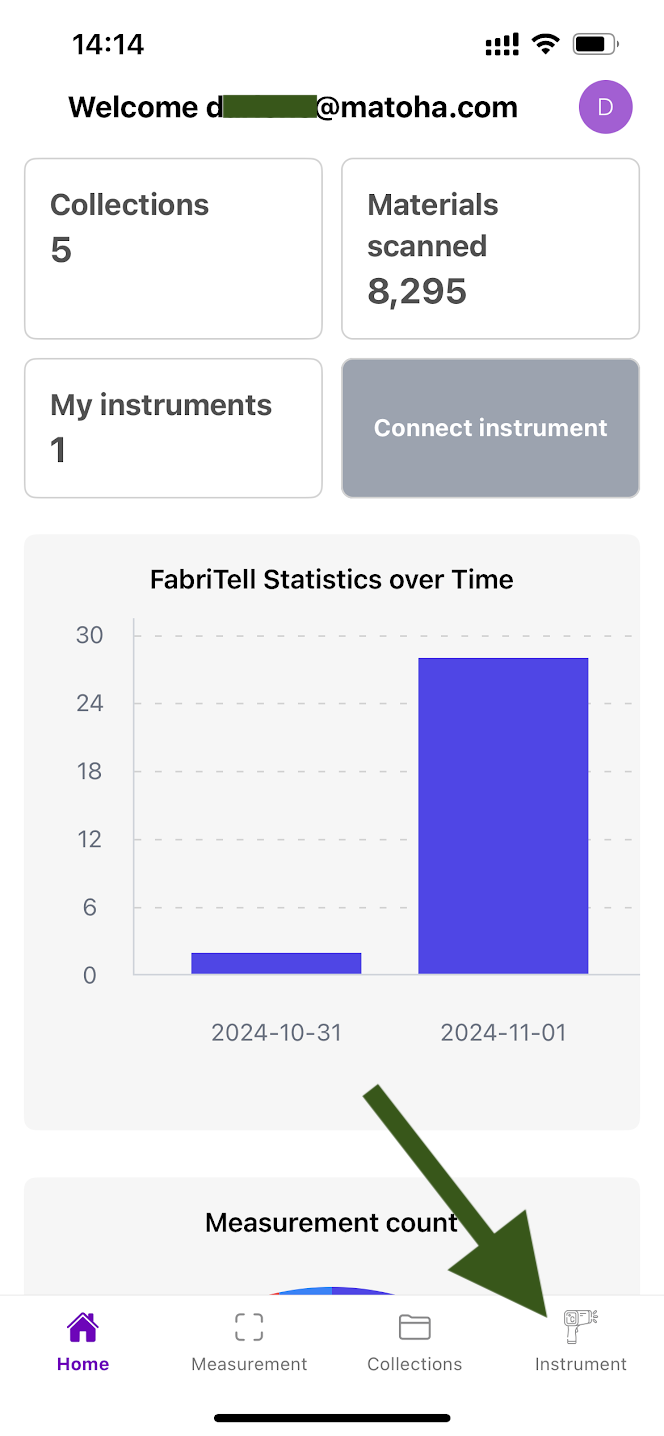
Step 2 - Go to the Instrument section
Phone/Tablet version | Desktop version |
Click on the Instrument icon at the bottom right of the screen.
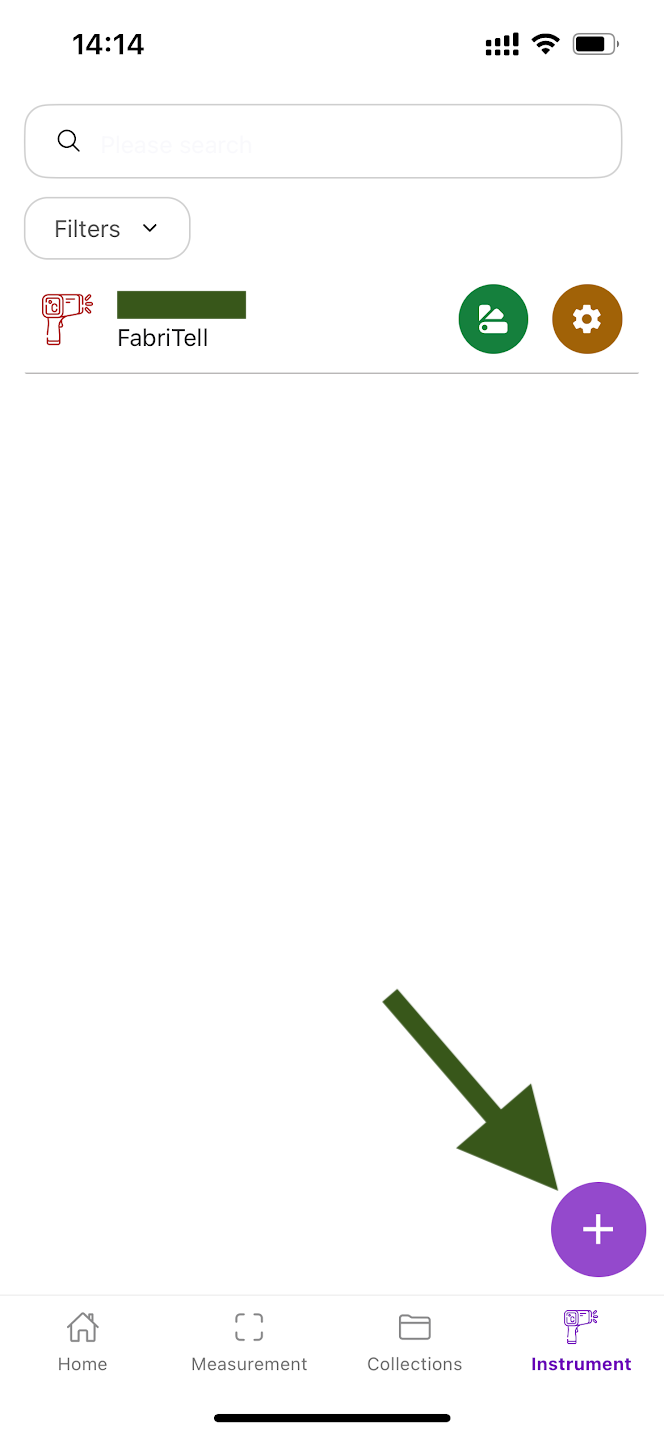
This will take you to a page where you can view all of your Matoha devices already linked to your account, as well as add new devices. To add a new device to your account, press the purple "+" button at the bottom right and scan the QR code found on your Matoha device (Desktop and Bench devices: bottom of the device, Handheld device: above the 'trigger' button).
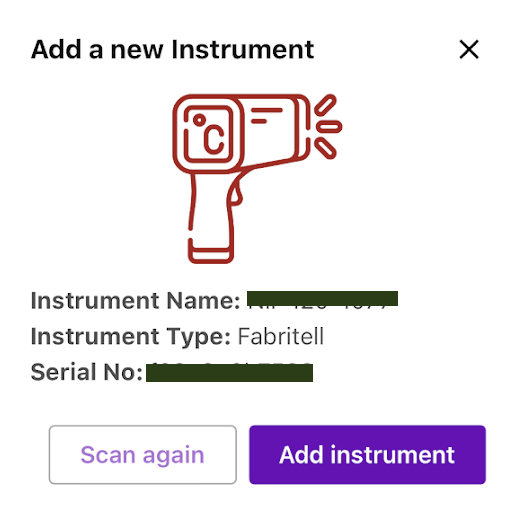
A pop-up with your device details will appear, select 'Add instrument' to connect your Matoha Device to your account.
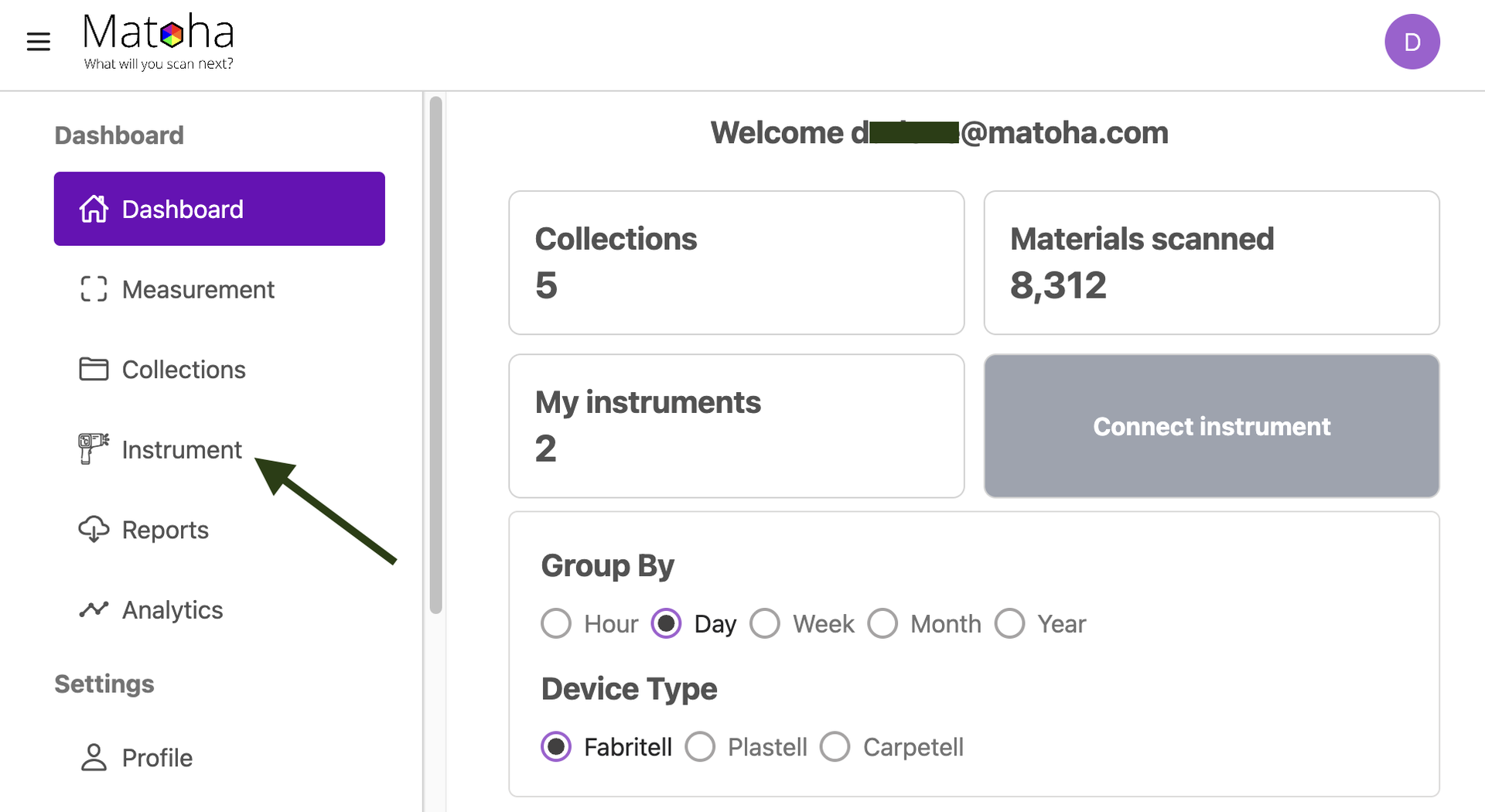
Your Matoha device is now connected to your account! | Click on the Instrument icon on the left hand menu.
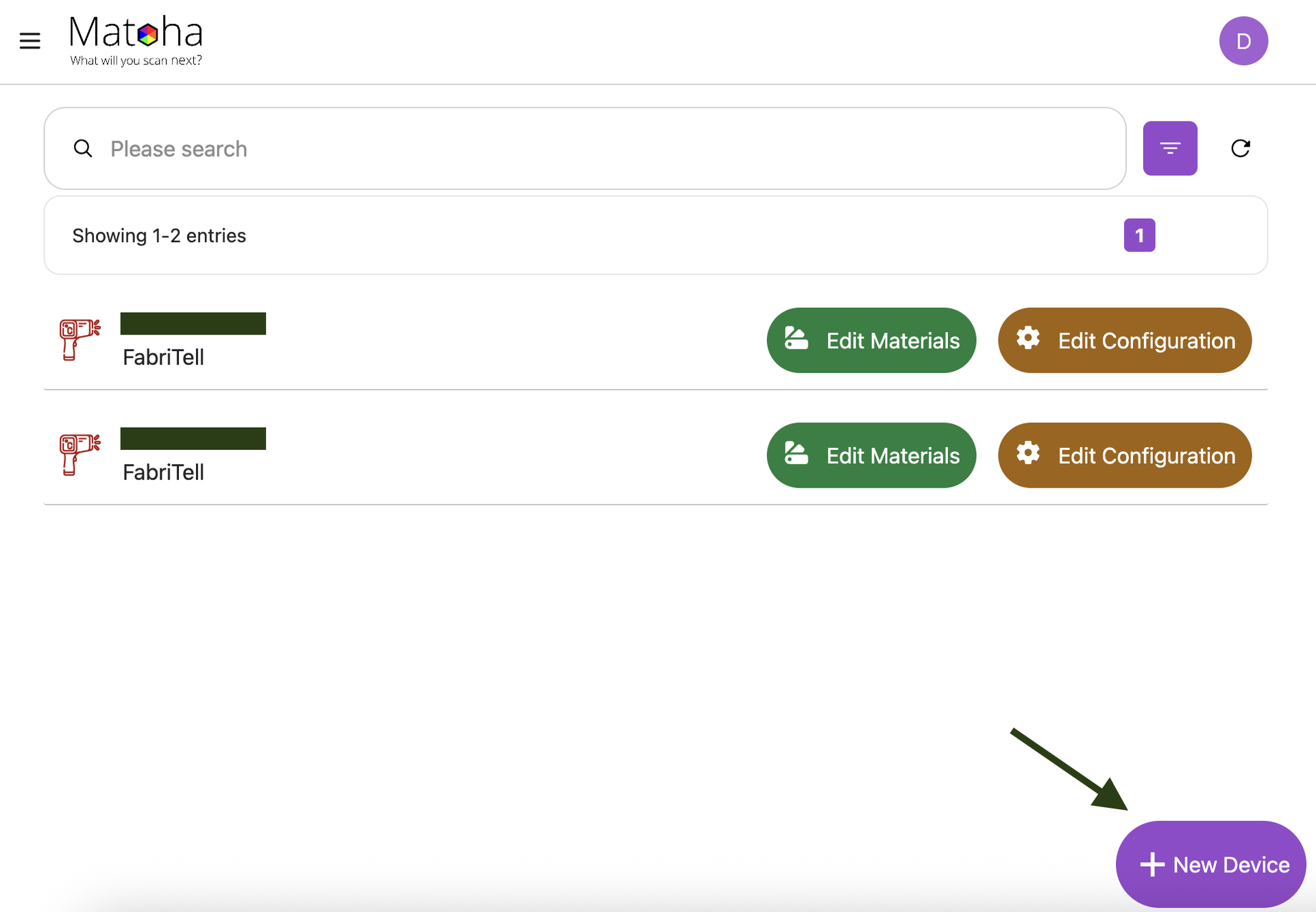
This will take you to a page where you can view all of your Matoha devices already linked to your account, as well as add new devices. To add a new device to your account, press the purple "+ New Device" button at the bottom right and scan the QR code found on your Matoha device (Desktop and Bench devices: bottom of the device, Handheld device: above the 'trigger' button).
A pop-up with your device details will appear, select 'Add instrument' to connect your Matoha Device to your account.
Your Matoha device is now connected to your account! |