Calibrating the Instrument
Calibrating your machine ensures that your measurements are accurate. This document will guide you on how to calibrate the machine using our app. We recommend calibrating the device every few weeks.
Step 1 - Connect to your instrument
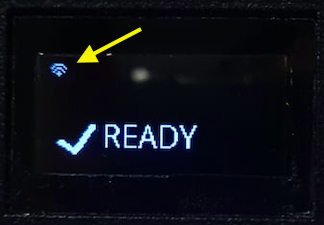
Please open the Matoha app and connect to your instrument - see this guide. Your device needs to be connected to a WiFi network as indicated by a WiFi icon at the top left of your device screen. If your device is not connected to a WiFi network, follow this guide.
Step 2 - Entering Calibration mode
Phone/Tablet version | Desktop version |
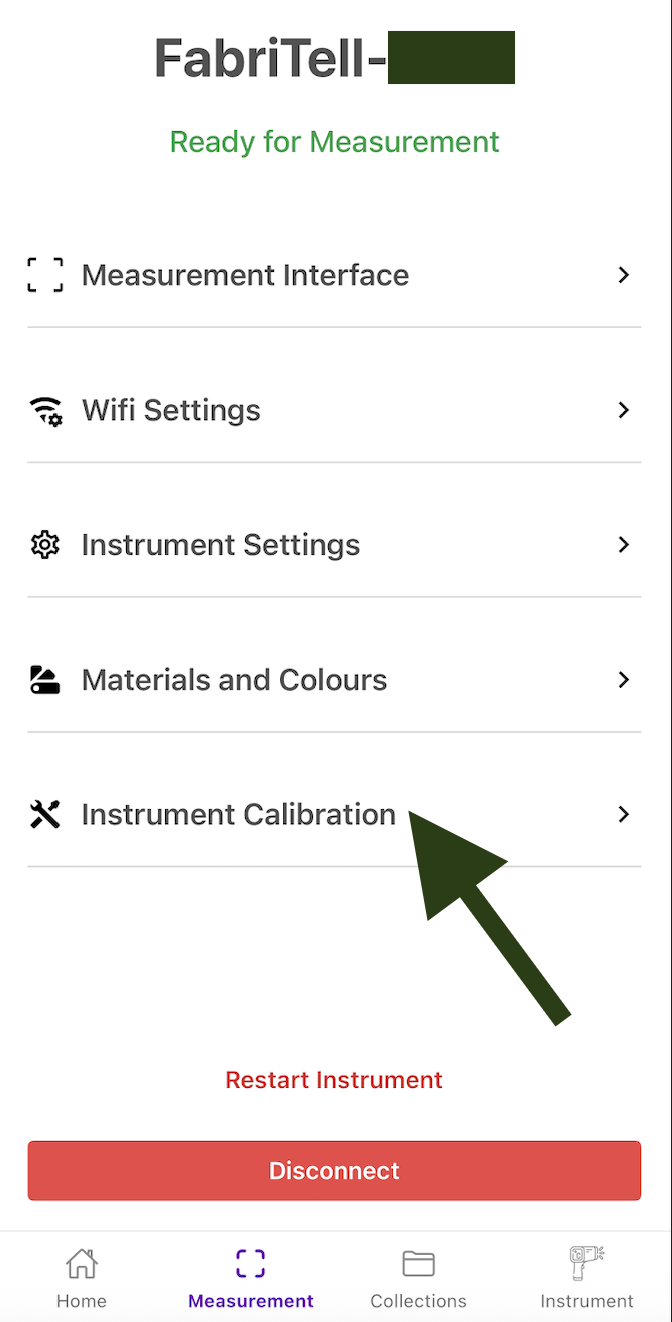
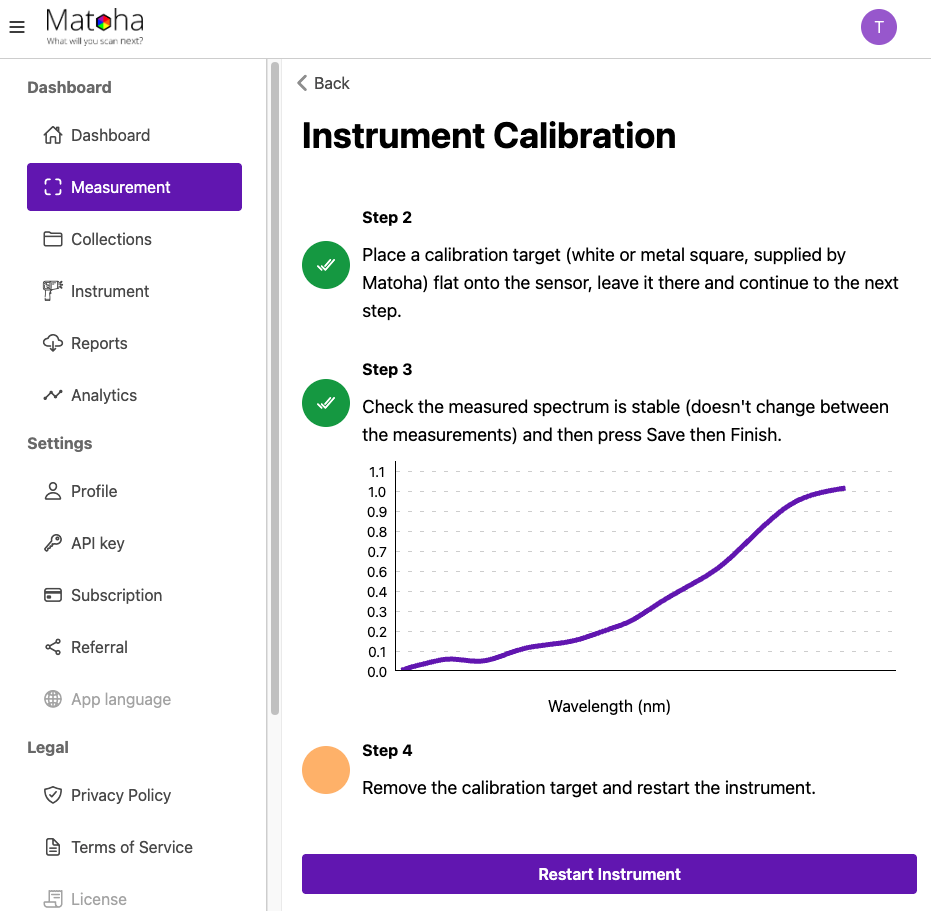
Once connected to your device, you should then see a screen as per the screenshot below. Please press the "instrument calibration" tab. Depending on the Matoha device you have, the device screen may turn white, or stay as normal.
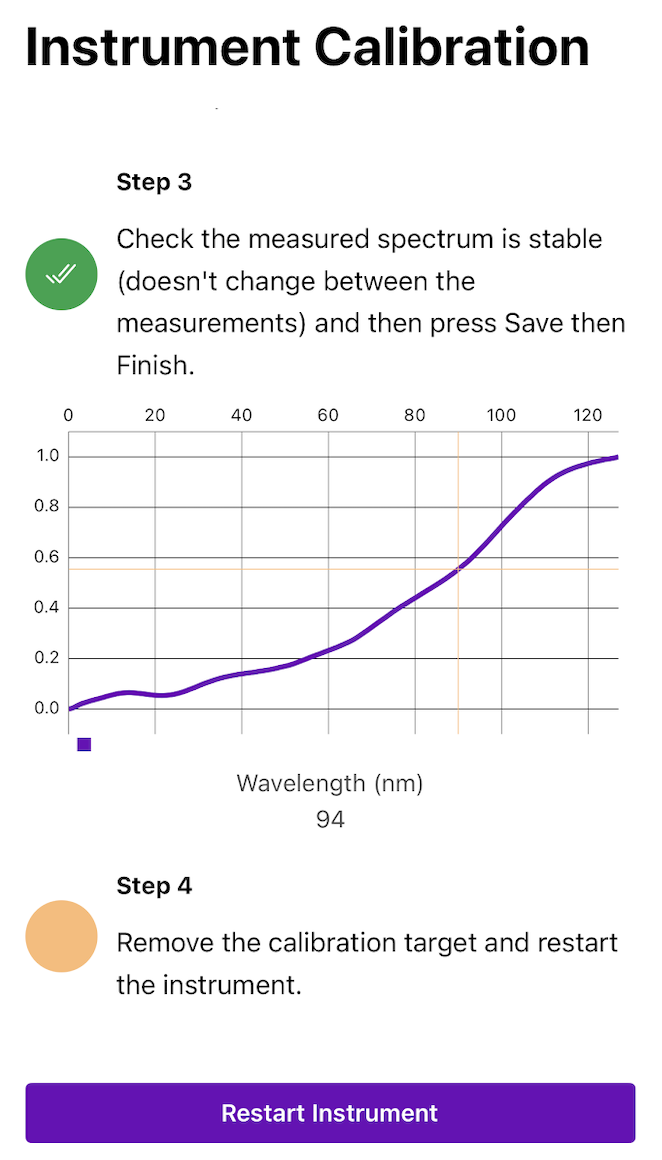
Simply follow the on-screen instructions. You will need to click on "Next step" for each step to appear.
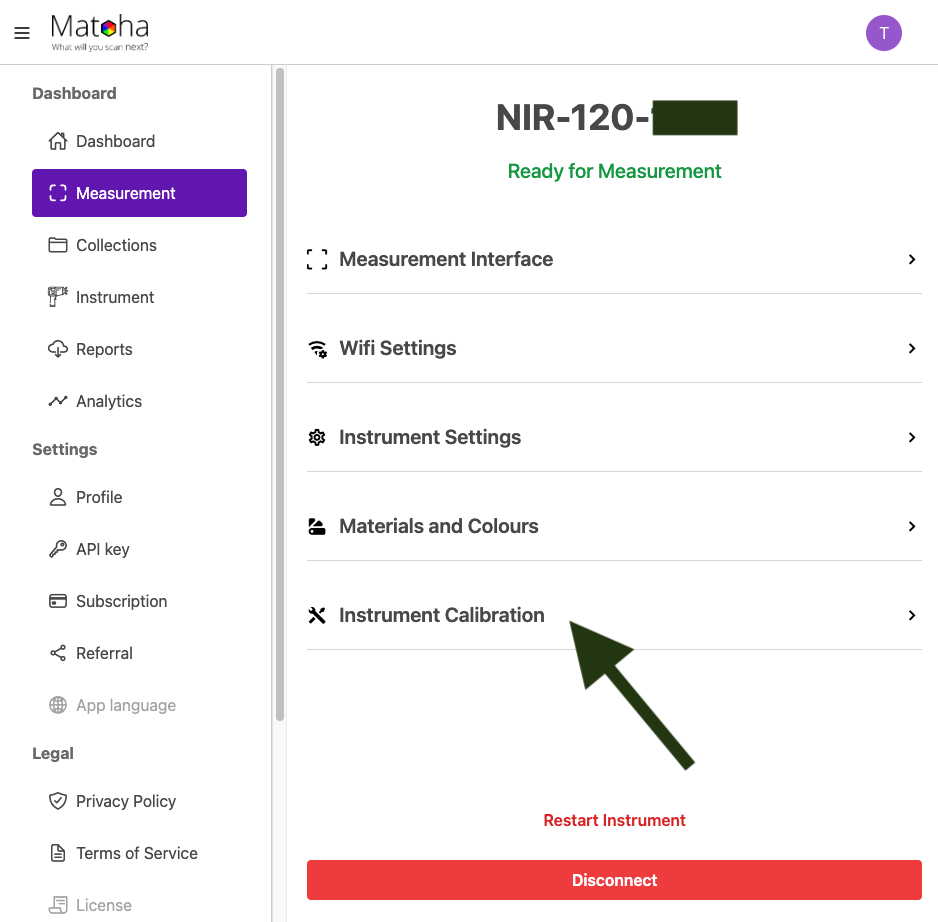
Once you have saved your calibration spectrum, press "Restart Instrument" and you will be directed back to the Matoha app homepage. REMOVE the calibration target, select "Restart instrument", allow your instrument to restart and turn on. It will download the calibration data from the cloud and restart itself. | Once connected to your device, you should then see a screen as per the screenshot below. Please press the "instrument calibration" tab. Depending on the Matoha device you have, the device screen may turn white, or stay as normal.
Simply follow the on-screen instructions. You will need to click on "Next step" for each step to appear.
Once you have saved your calibration spectrum, press "Restart Instrument" and you will be directed back to the Matoha app homepage. REMOVE the calibration target, select "Restart instrument", allow your instrument to restart and turn on. It will download the calibration data from the cloud and restart itself. |
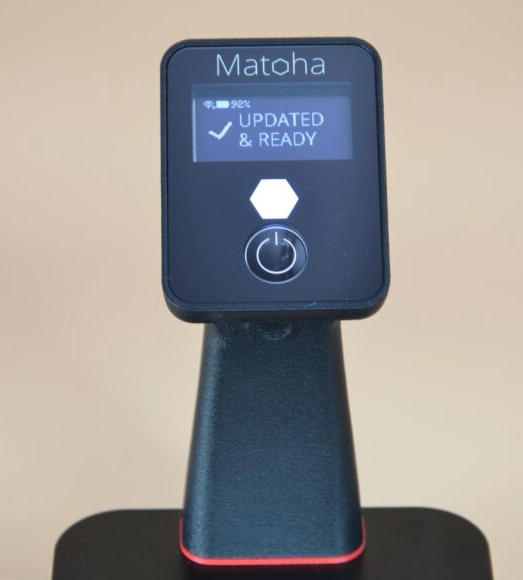
Your device is now calibrated and ready for use!