Configuring the Material Indicator LED (FabriTell)
Under the screen, the instrument has a colour LED that can be programmed to display specific colours for particular materials. For example, if you are sorting polyester for recycling and want to accept only samples with at least 70% polyester, you could configure the LED to show green (accept) for samples meeting this criterion and red (reject) for those that do not.
By default, any material or blend that does not match the rules you have set will cause the LED to turn red.
If the video does not start, use this link.
Step 1 - Connect to your device
Please connect to your FabriTell using our app.
Step 2 - Go to "Materials and colours"
Phone/Tablet version | Desktop version |
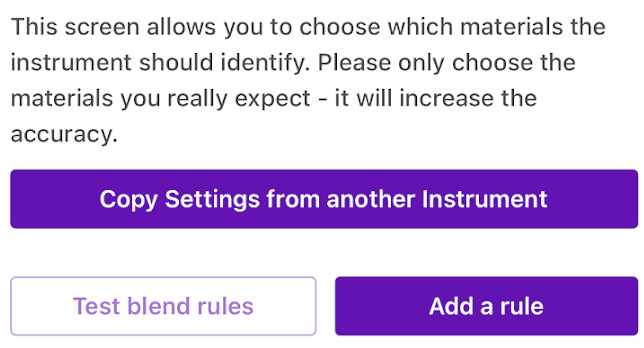
Find your instrument in the "Instrument" section of the app and tap on the green materials icon.
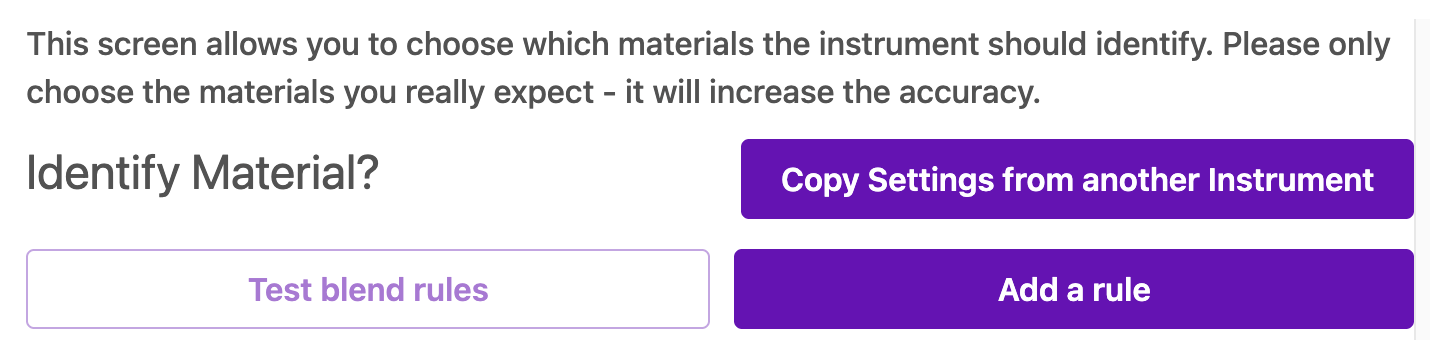
| Find your instrument in the "Instrument" section of the app and tap on the green "Edit Materials" icon.
|


Step 3 - Understanding your rules
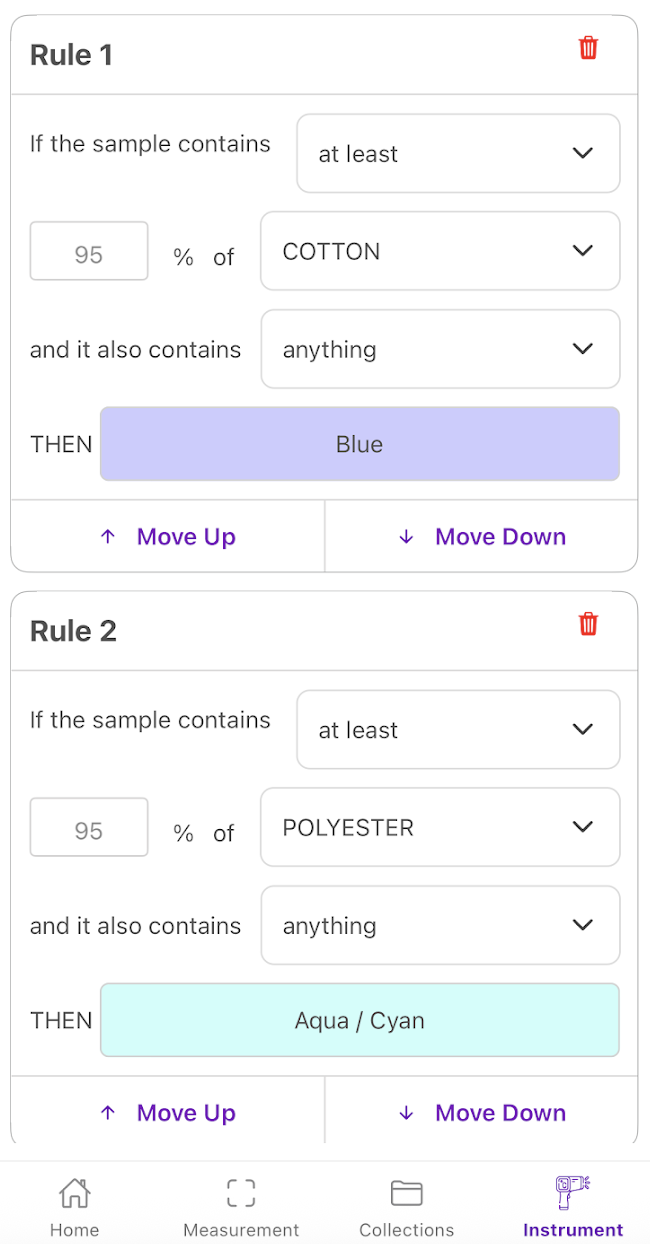
You can create, edit, or remove rules, and there is no limit to the number of rules you can set. If a sample meets the criteria of two or more rules, the FabriTell LED will display the colour associated with the rule that appears first in your list. I.e. the device follows the order of your rules when determining which colour to display.
For example, the first rule above makes the machine show a blue LED light: "If the sample contains at least 95% cotton and it also contains anything else", so any sample that has 95–100% cotton will result in a blue light.
Step 4 - Create and save your rules
Phone/Tablet version | Desktop version |
Tap on the purple "Add a rule" button.
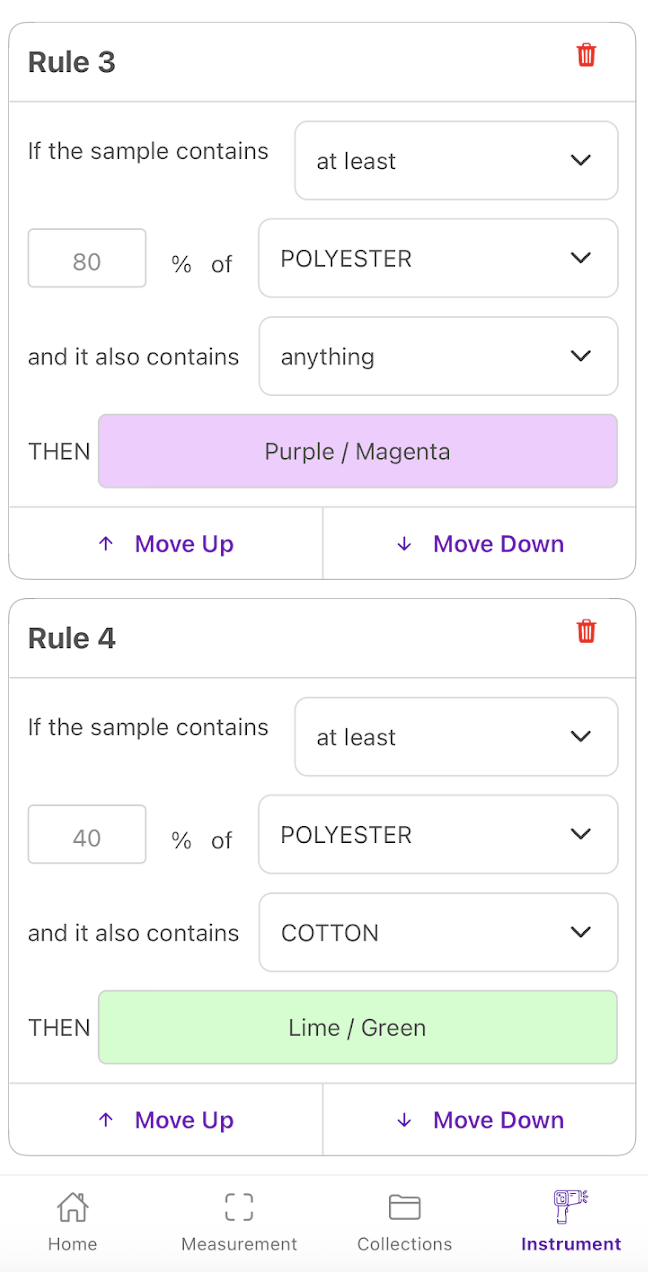
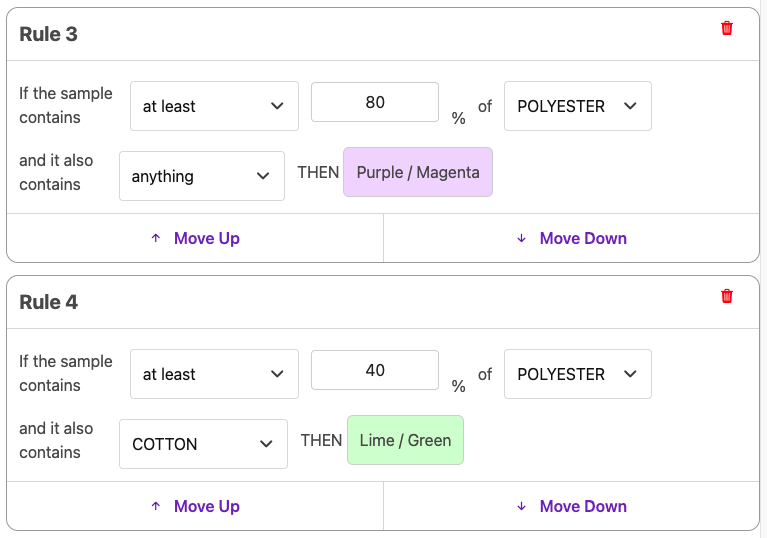
You can adjust the percentages to suit your needs. You can also create more complex rules, for instance, "show GREEN for 40–80% polyester-cotton blend and show PURPLE for 80+% polyester." In this example, the first rule matches the polyester, and if there is less than 80% polyester, the second rule is checked, which only applies for at least 40% polyester when the other component is cotton.
Once you are finished with adding/changing your rules, tap on "Save Changes". This will save your rules and you will be asked to restart your device. The device will only be able to get the new settings from our cloud if it's connected to Wi-Fi! | Tap on the purple "Add a rule" button.
You can adjust the percentages to suit your needs. You can also create more complex rules, for instance, "show GREEN for 40–80% polyester-cotton blend and show PURPLE for 80+% polyester." In this example, the first rule matches the polyester, and if there is less than 80% polyester, the second rule is checked, which only applies for at least 40% polyester when the other component is cotton.
Once you are finished with adding/changing your rules, tap on "Save Changes". This will save your rules and you will be asked to restart your device. The device will only be able to get the new settings from our cloud if it's connected to Wi-Fi! |