Exporting Data
Step 1 - Go to your collection and export your data.
Phone/Tablet version | Desktop version |
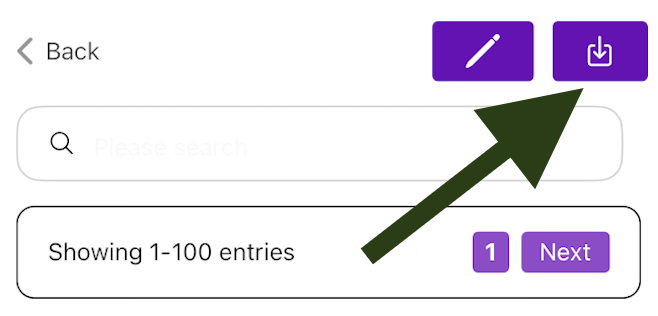
Go to "Collections" and select the relevant collection. A list of your saved measurements will appear. Press the green "Export" button as indicated by the arrow.
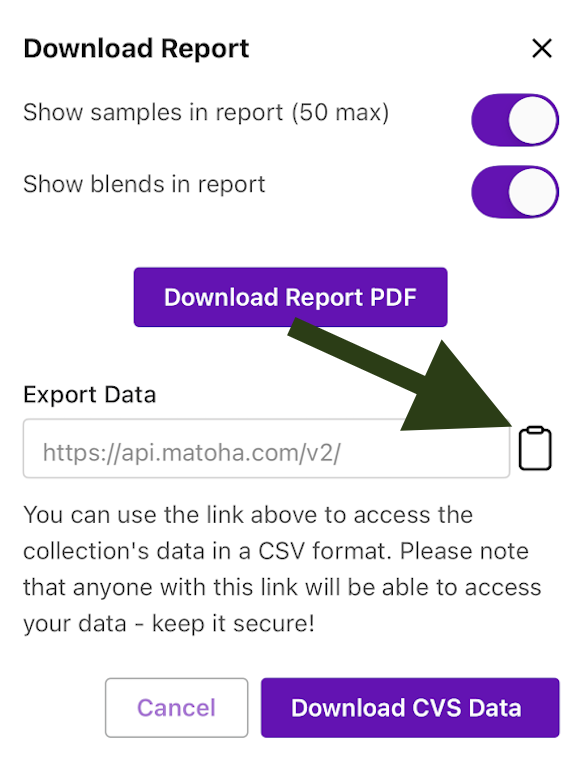
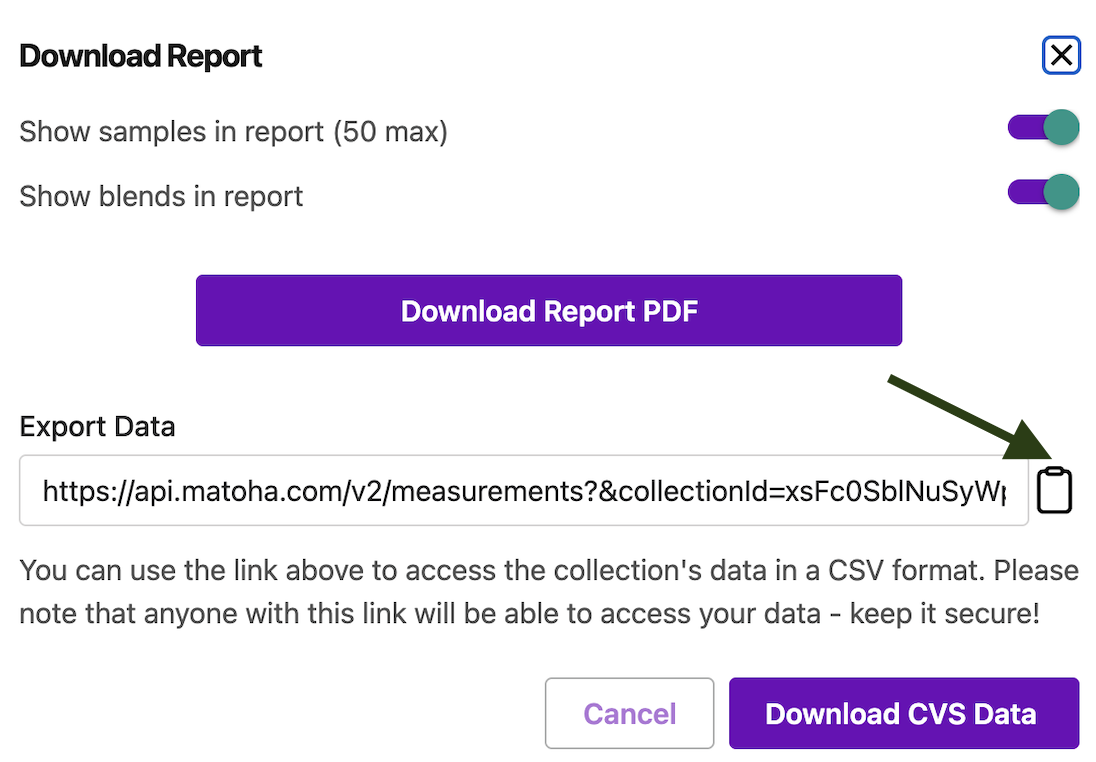
A pop-up will appear. Click on the 'Copy' icon as indicated by the arrow. This is for a unique link for your dataset. Keep this link safe as anyone with the link can access the data for this collection!
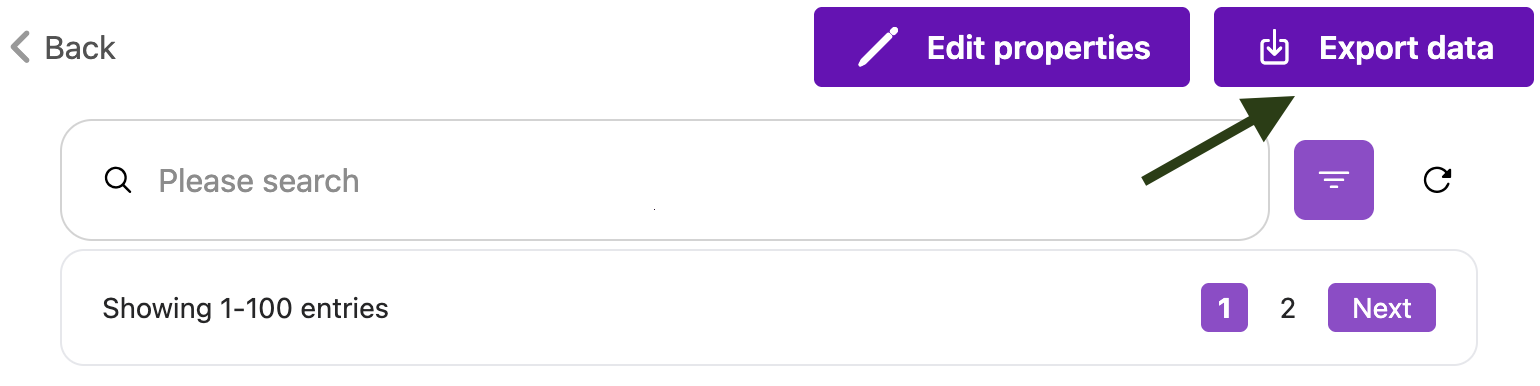
Paste this link into any web browser to view your data. | Go to "Collections" and select the relevant collection. A list of your saved measurements will appear. Press the purple "Export data" button as indicated by the arrow.
A pop-up will appear. Click on the 'Copy' icon as indicated by the arrow. This is for a unique link for your dataset. Keep this link safe as anyone with the link can access the data for this collection!
Paste this link into any web browser to view your data. |
Step 3 - Processing your exported data
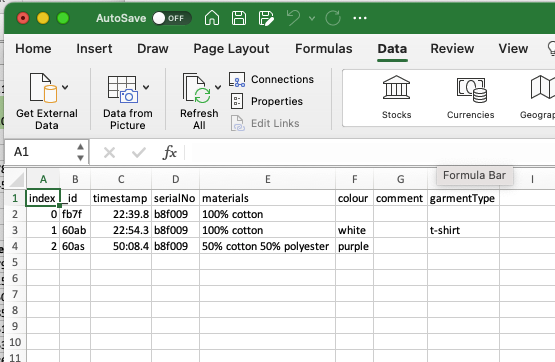
The data will be exported in the CSV format (comma separated values). The typical contents of an exported file are shown below:
index,_id,timestamp,serialNo,materials,colour,comment,garmentType
0,fb7f,2021-05-24 13:22:39.802,b8f009,100% cotton,,,
1,60ab,2021-05-24 13:22:54.302,b8f009,100% cotton,white,,t-shirt
2,60as,2021-05-25 07:50:08.375,b8f009,50% cotton 50% polyester,purple,,
The first row contains the column names and the subsequent rows the saved data. The columns are separated by commas.
This CSV format can be easily imported into Microsoft Excel:
Create a new spreadsheet / file.
Go to Data -> Get External Data -> From Text. Select the exported file.
Select the data type = Delimited then press Next.
Select the delimiters as Comma and uncheck any other delimiters. Choose the Text qualifier as " and press Finish.