Creating a New Collection
Collections are folders for your spectra (measurements) and you can use them to organise the measured data. The first step is to create a collection (this guide), then you can save data into it and export it.
If the video does not start, use this link.
Step 1 - Go on "Collections"
Phone/Tablet version | Desktop version |
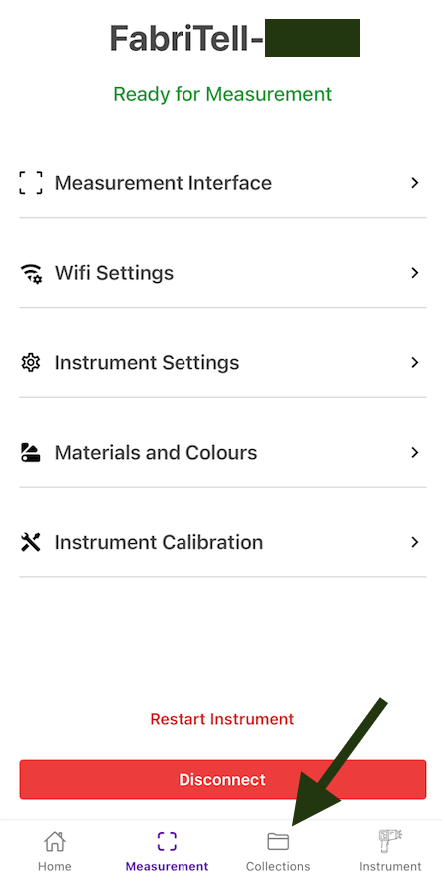
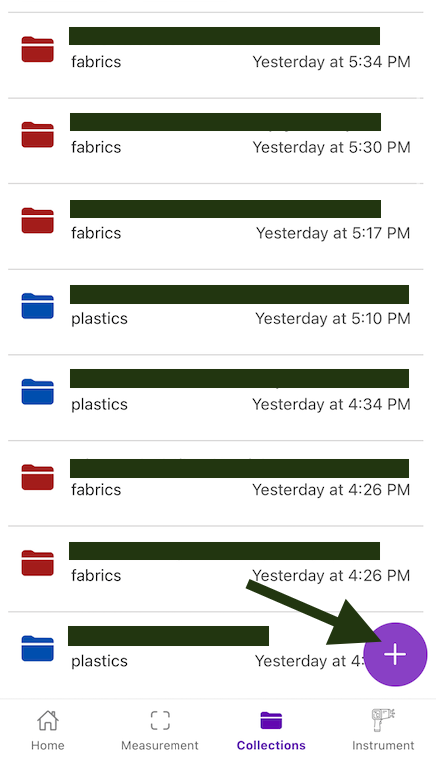
Open your Matoha web app and select "Collections" from the bottom menu.
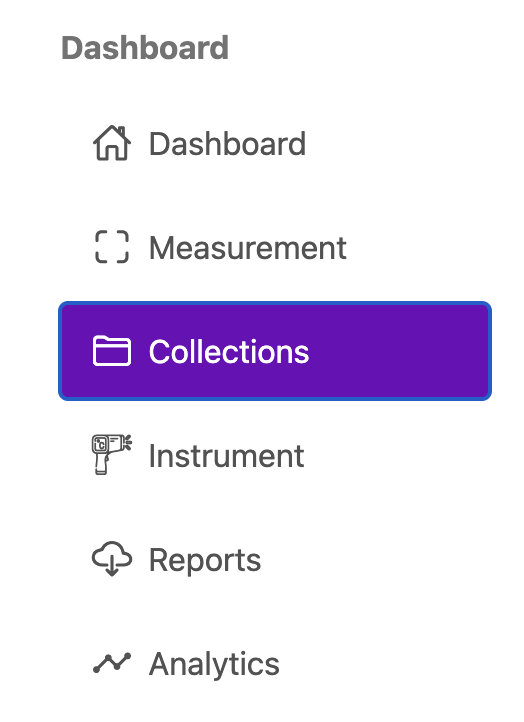
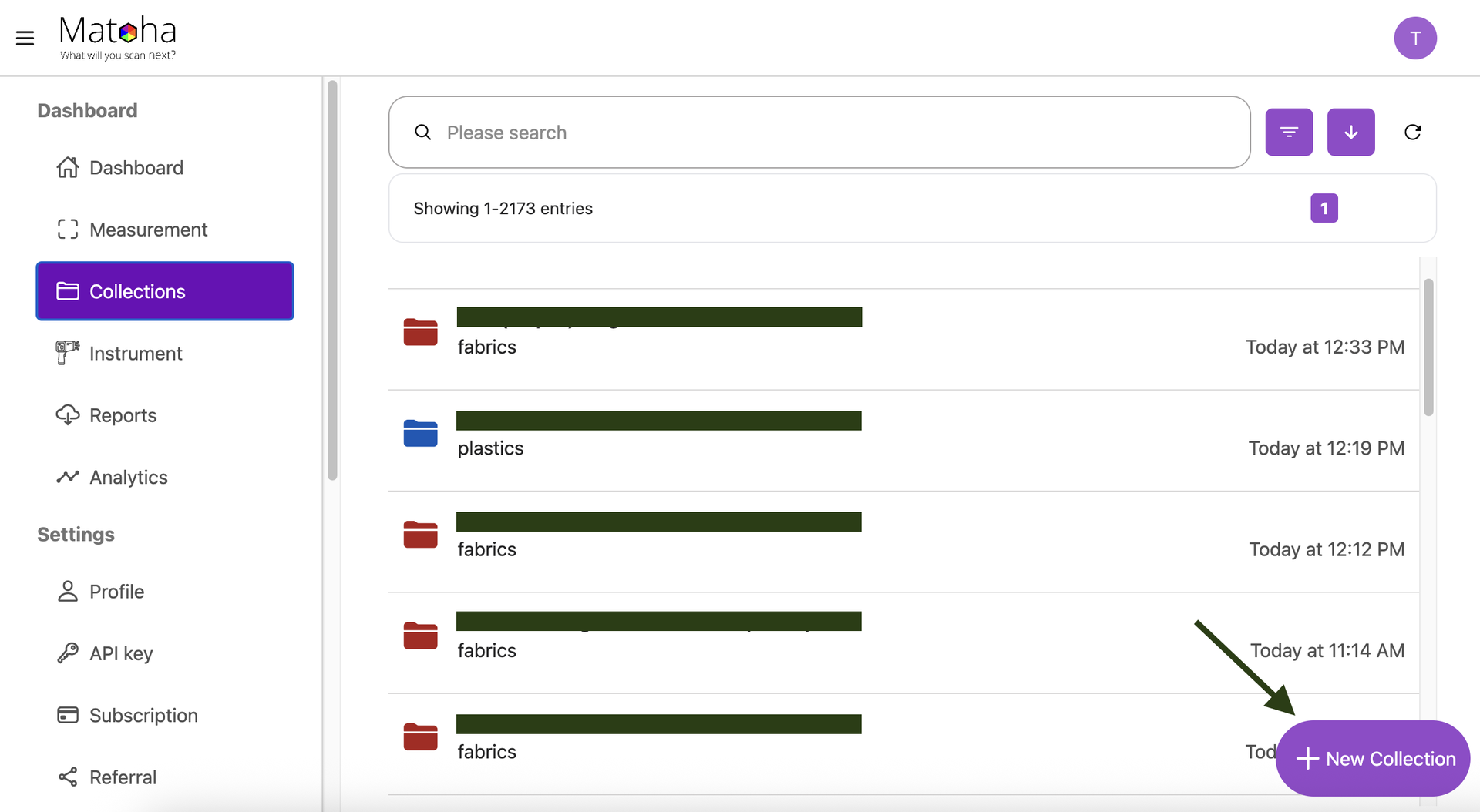
| Open your Matoha web app and select "Collections" from the side menu.
|
Step 2 - Create a new collection
Phone/Tablet version | Desktop version |
Press the purple "+" icon on the bottom right corner
| Press the purple "+ New Collection" icon on the bottom right corner
|
Step 3 - Name your collection
Phone/Tablet version | Desktop version |
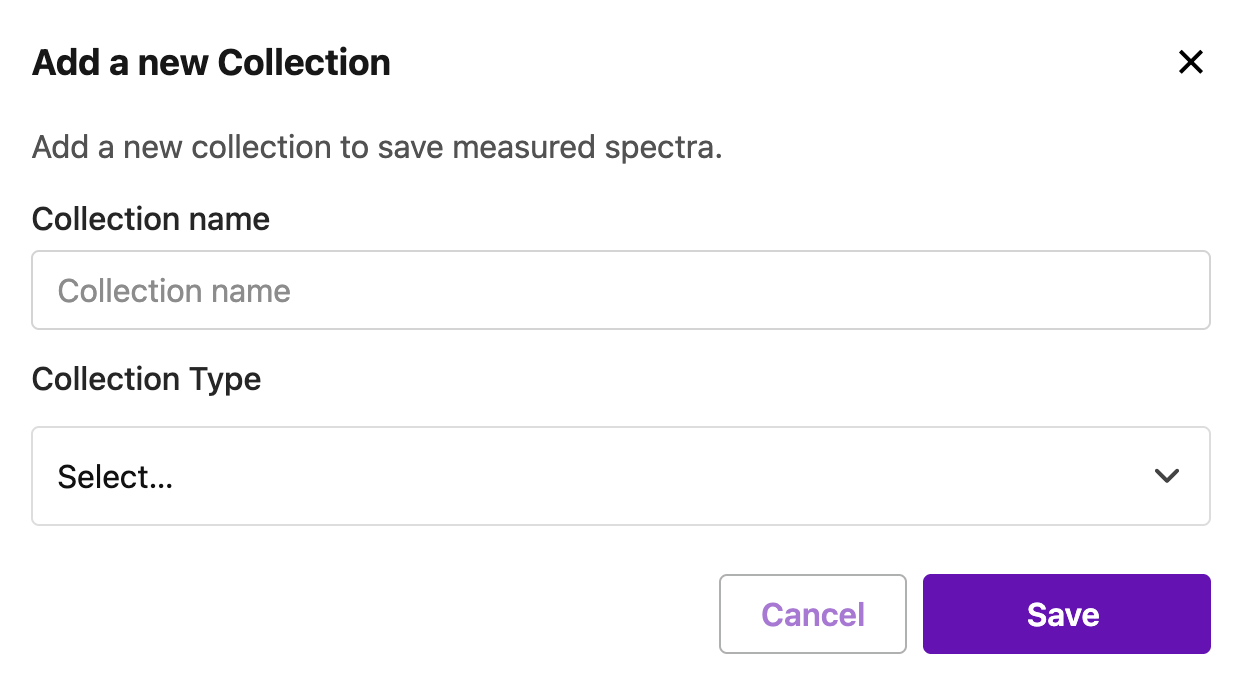
A pop up will open. Type in a name for your new collection and select the type of machine you have (FabriTell, PlasTell, or CarpeTell). Click on "Save". This will create your collection which can be found in "Collections".
| A pop up will open. Type in a name for your new collection and select the type of machine you have (FabriTell, PlasTell, or CarpeTell). Click on "Save". This will create your collection which can be found in "Collections".
|
Deleting a collection
Phone/Tablet version | Desktop version |
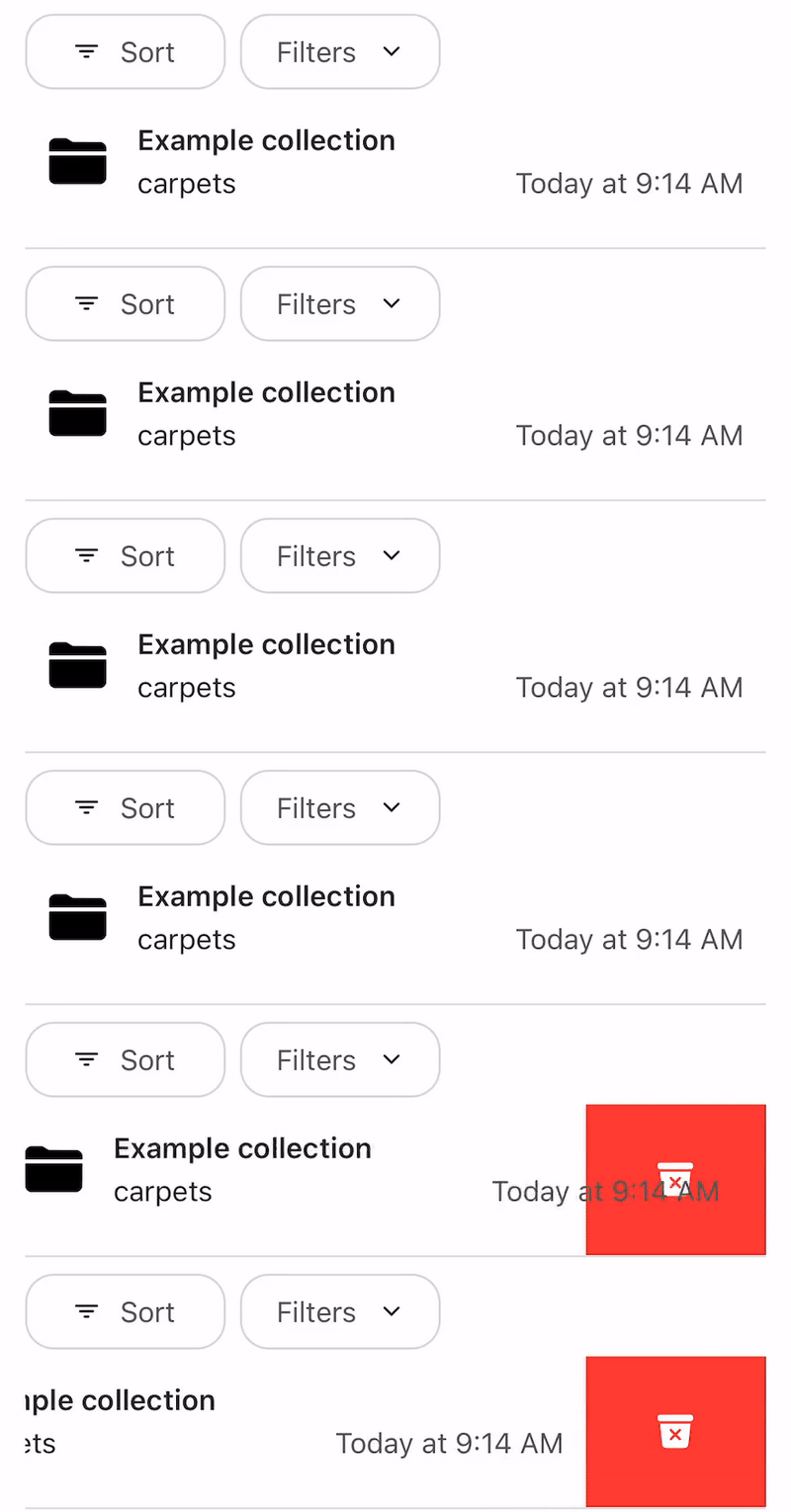
1. Find the collection that you would like to delete. 2. Click and drag the collection name to the left.
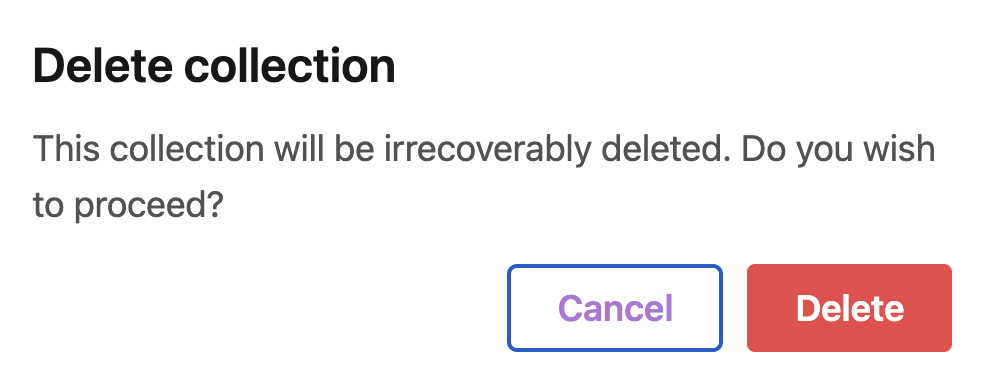
3. Confirm that you want to delete your collection by clicking "Delete".
| 1. Find the collection that you would like to delete. 2. Click and drag the collection name to the left.
3. Confirm that you want to delete your collection by clicking "Delete".
|