Connecting Instruments to a Wi-Fi Network
Connecting the instrument to a Wi-Fi network or to your phone’s hotspot enables:
Automatic updates of firmware, libraries, and algorithms
Access to measurement statistics
Cloud reporting of measurement results
Connecting to Wi-Fi
Connecting to Hotspot
If the videos do not start, use this link for Wi-Fi connection, and this link for Hotspot connection.
Step 1 - Connect to the instrument
Please follow this guide to connect to the instrument with our Desktop app or web app.
Step 2 - Set up the Wi-Fi connection
Phone/Tablet version | Desktop version |
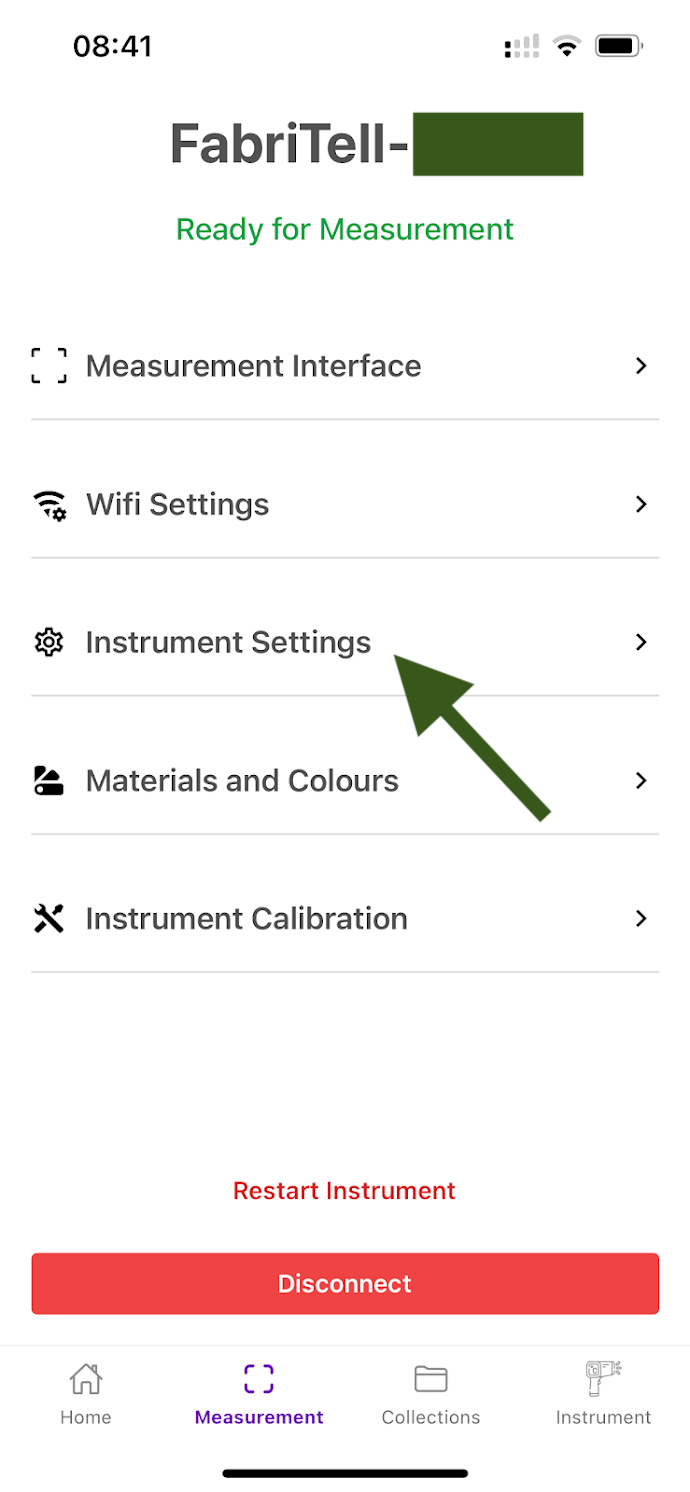
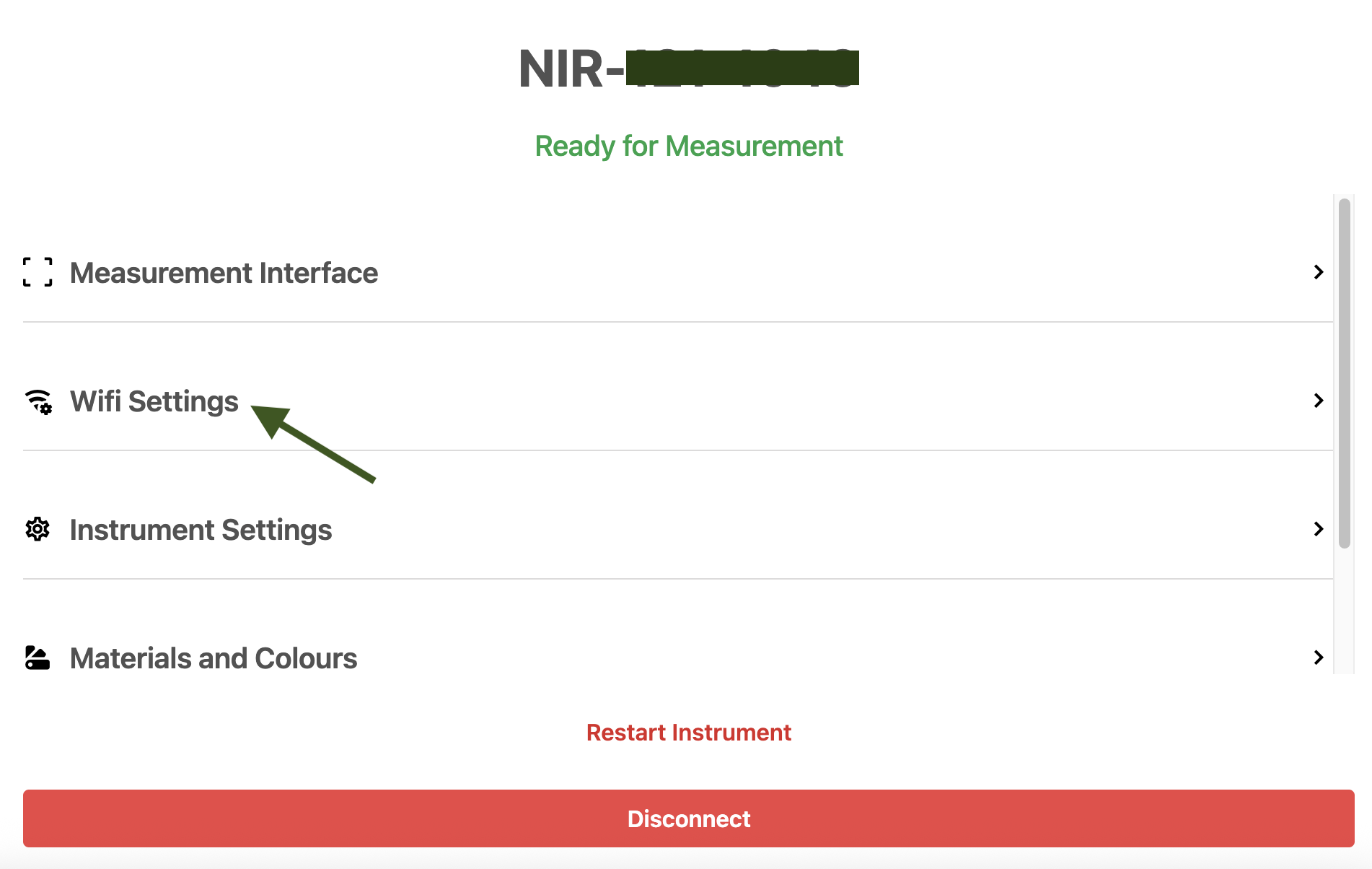
1.After connecting to the instrument, you will see the screen below. 2. Press the button "WiFi settings".
3. Then, select "Scan for WiFi" or enter the Wi-Fi SSID (name of the network) and the password and press Save.
You will then be prompted to restart your device to allow the update to go through. | 1.After connecting to the instrument, you will see the screen below. 2. Press the button "WiFi settings".
3. Then, select "Scan for WiFi" or enter the Wi-Fi SSID (name of the network) and the password and press Save. You will then be prompted to restart your device to allow the update to go through. |
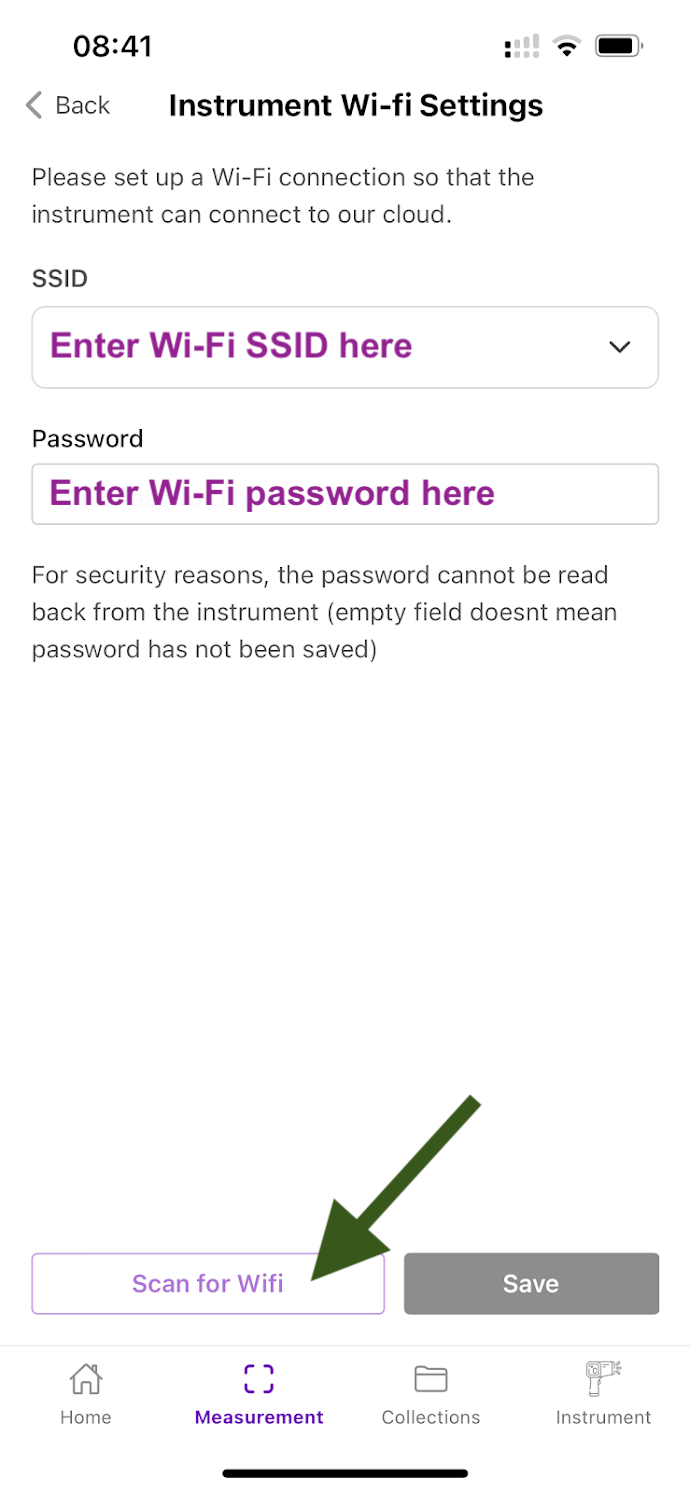
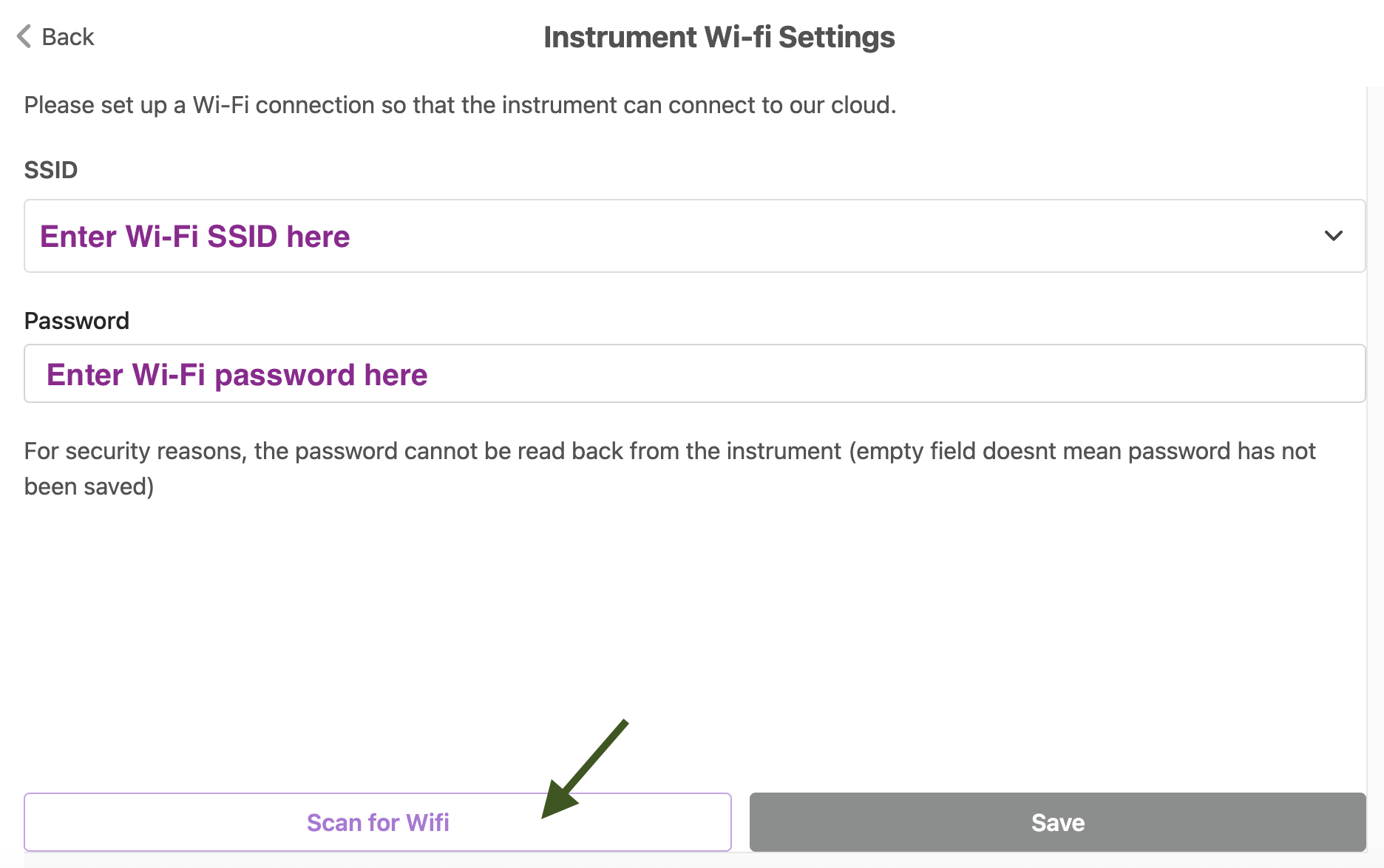
The device supports 2.4 GHz Wi-Fi (no support for 5 GHz) and WEP/WPA/WPA2 Personal authentication (no support for WPA2-Enterprise). As the Wi-Fi network, you can also use a personal hotspot created by a phone.
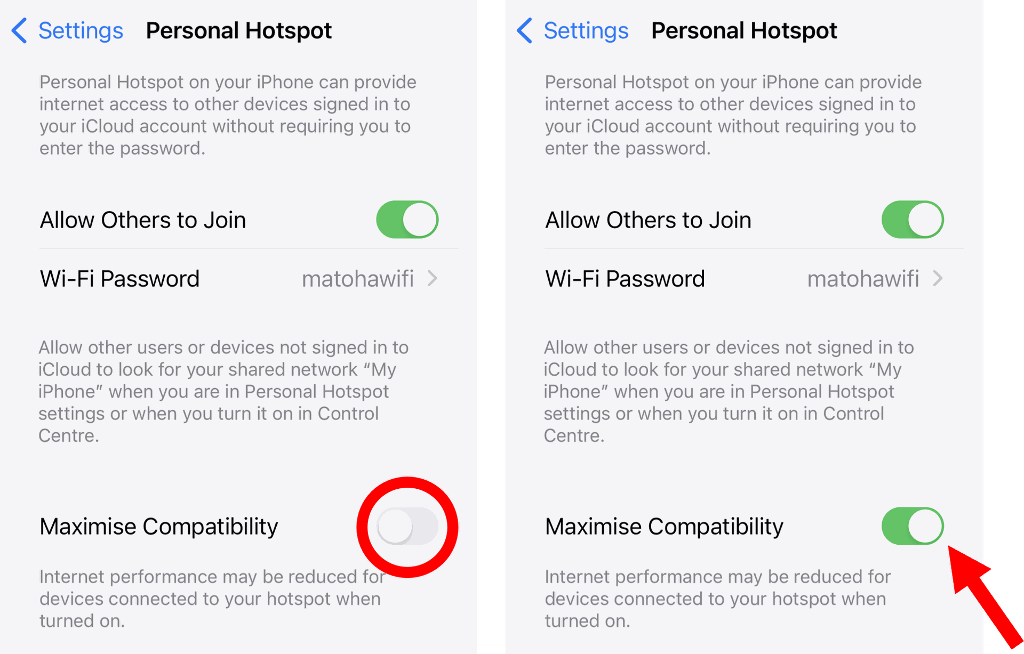
Setting up a hotspot using an iPhone device.
When using a personal hotspot with an iPhone it is set to 5 GHz connection by default.
To change this to a 2.4 GHz connection, go to:
iPhone Settings -> Personal Hotspot -> turn on Maximise Compatibility.
Step 3 - Restart the device
After saving, please restart the device using the red Restart instrument button (see the left screenshot in the previous step).
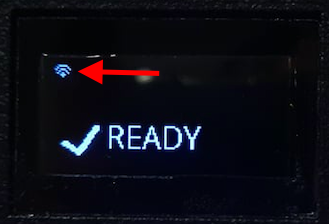
If the connection is successful, a small Wi-Fi icon will appear in the top-right corner of the screen (see photo below).
If you encounter issues connecting:
Double-check the spelling of your network name (SSID) and password. Most connection problems are caused by simple typos.
Be aware that while most Wi-Fi types are supported, 5 GHz Wi-Fi and WPA2 Enterprise networks are not compatible at the moment. We have a beta solution for WPA2-Enterprise, please get in touch if you need it.