🤝
Connecting to Instruments with our App
If the video does not start, please use this link.
Step 1 - Turn on your device and Bluetooth
- Turn on the instrument.
- Turn on Bluetooth and Location on your phone or computer.
- Open the Matoha App or the Matoha website. The app might ask for Bluetooth and Location permissions - you must grant both otherwise it will not work! The reason why we need is also a Location permission is because the phone manufacturers won't let us scan for Bluetooth devices without the location permissions - we do not track, save or otherwise use your location!
Step 2 - Connect to your device.
Phone/Tablet version | Desktop version |
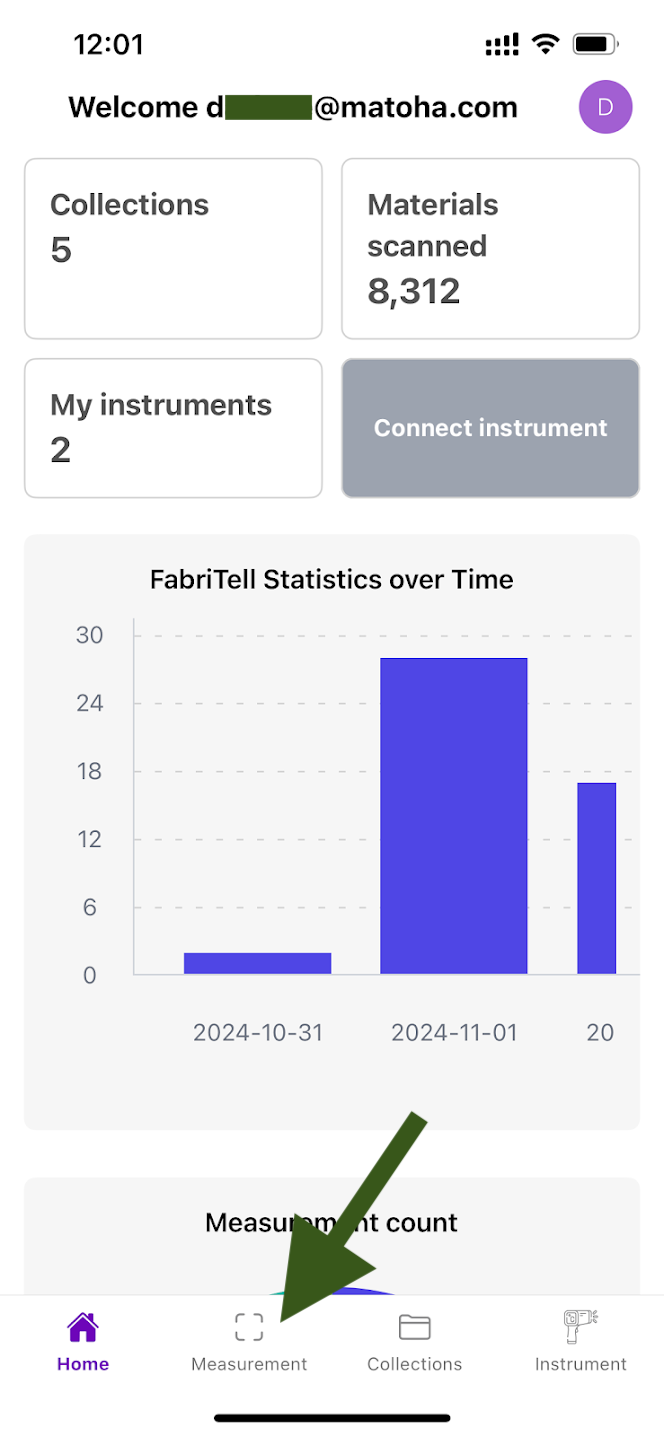
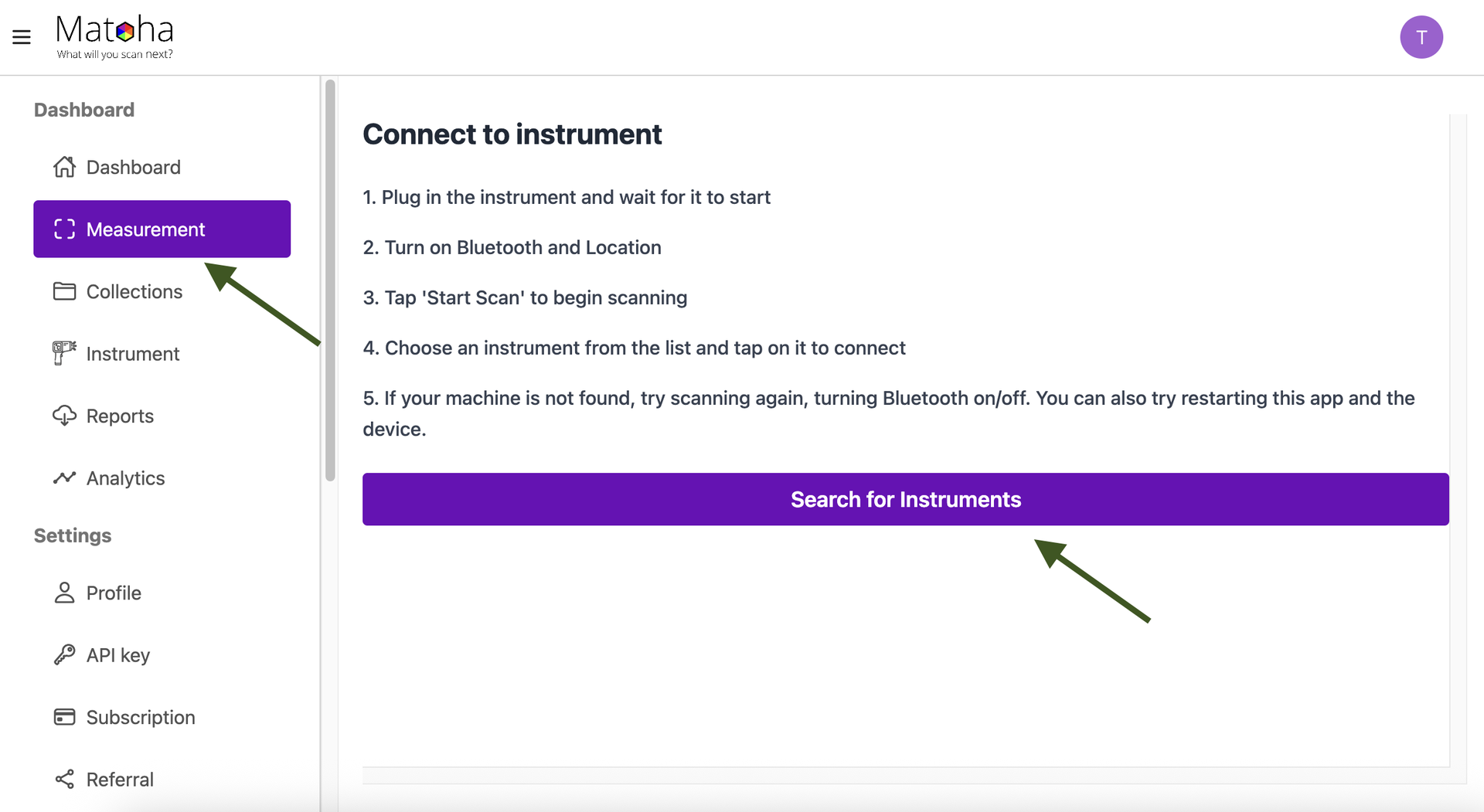
1.Select "Measurements" from the dashboard on the bottom of the screen.
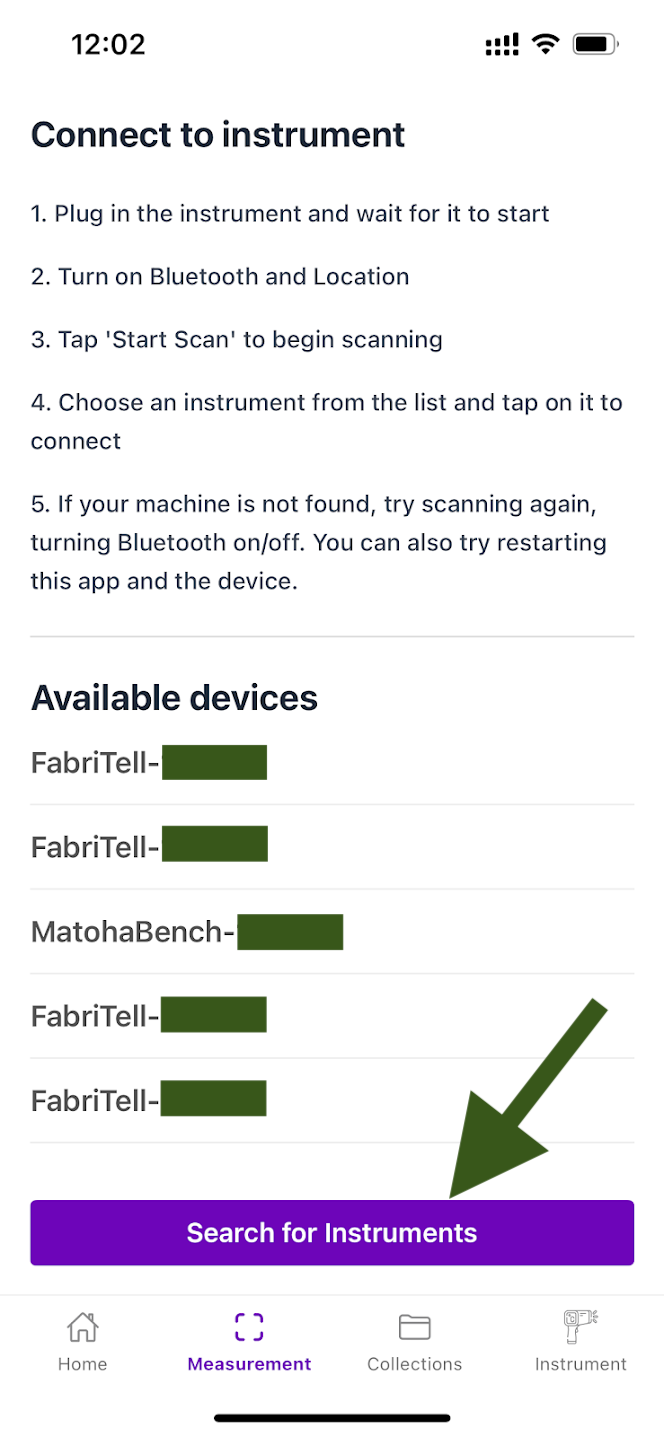
2. If your device is not shown in the list, tap on "Search for Instruments". This will add any Matoha devices that are switched on and within range of your phone/tablet.
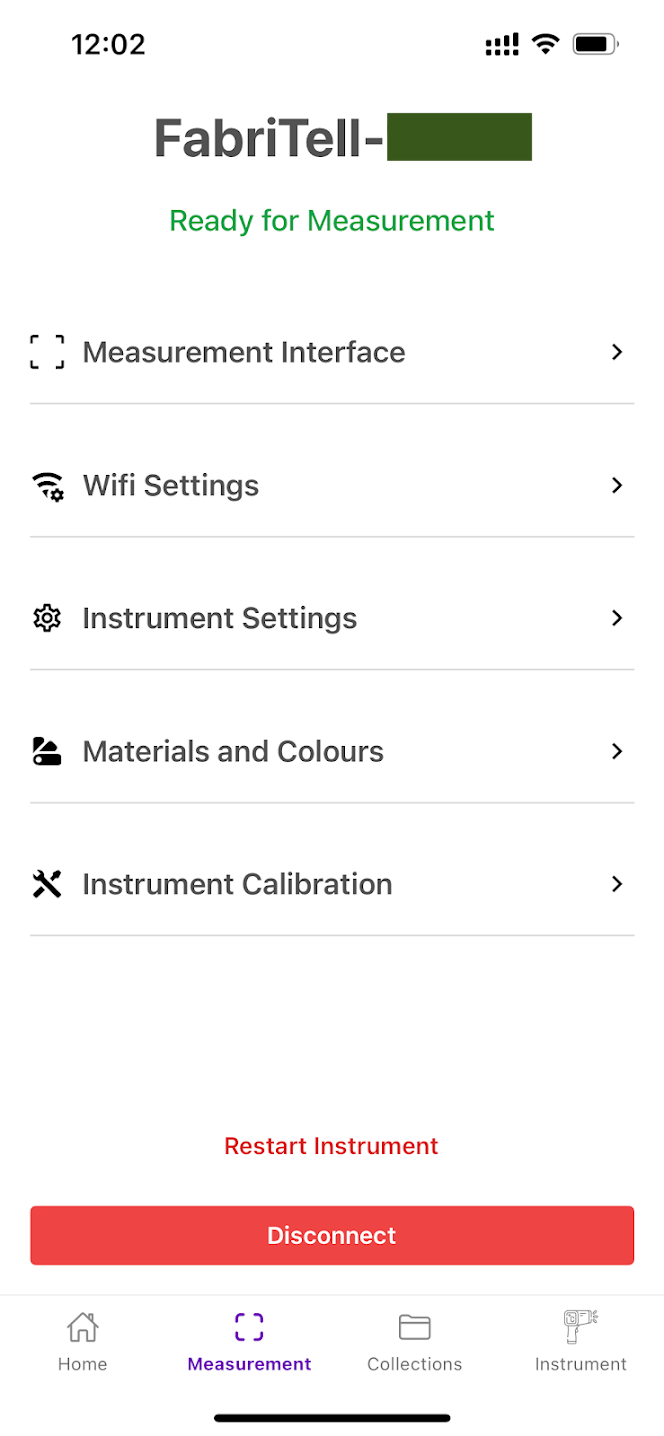
3. Select the device you want to connect to. 4. You are now connected to your Matoha device!
|
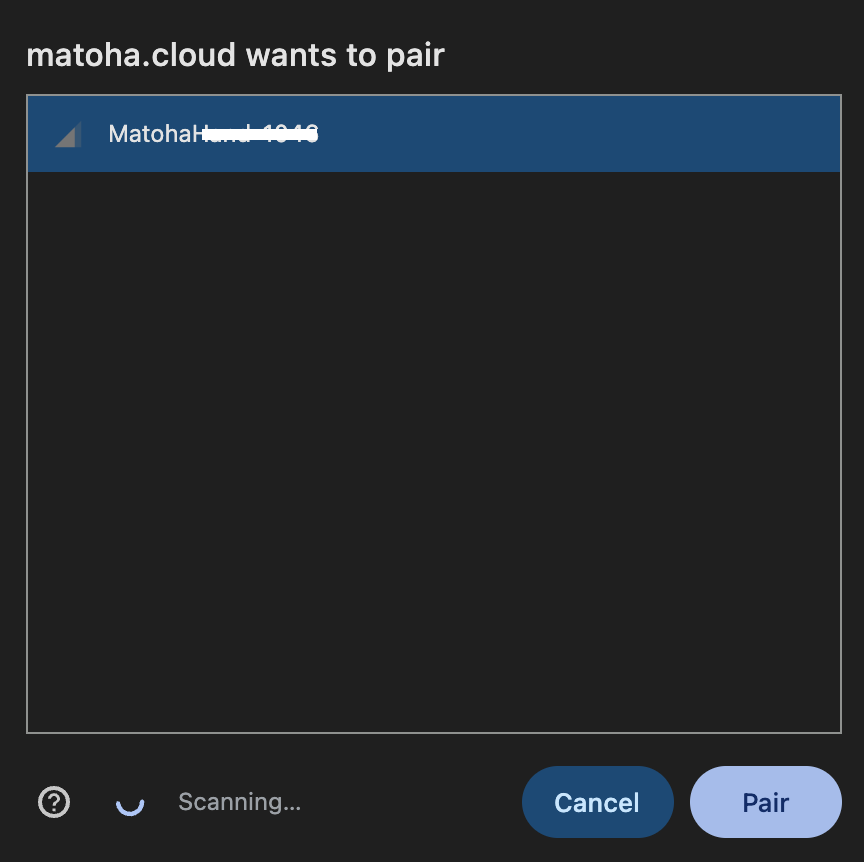
3. Select the device you want to connect to, and click on "Pair".
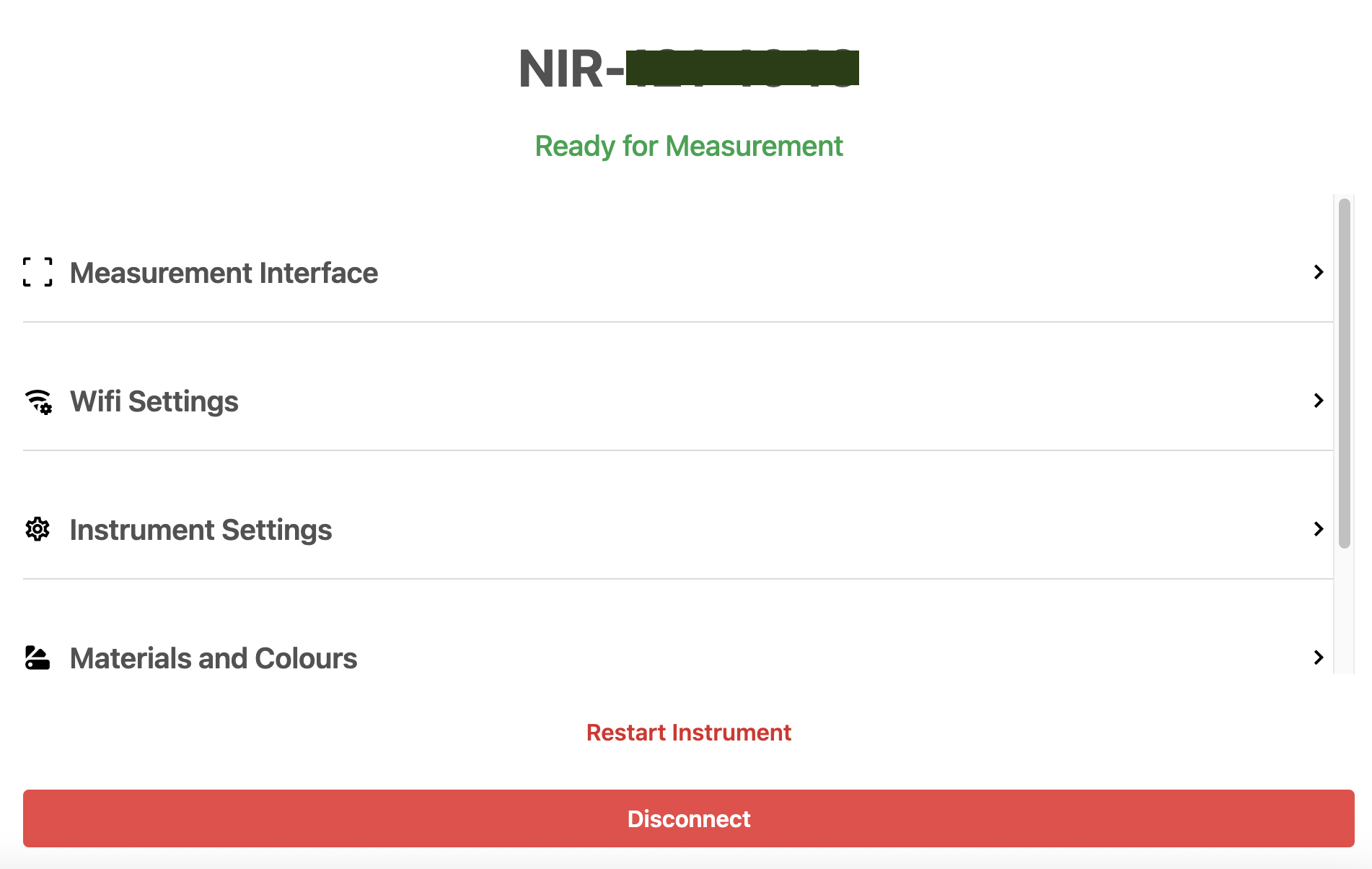
4. You are now connected to your Matoha device!
|
Read our other guides to learn how to use the app to:
- Connect your device to a Wi-Fi network
- Change the App language
- Update your device
- Create a new collection
- Save and retrieve measurements
- Configure the LED on your Matoha device
- Enable and disable materials (PlasTell and CarpeTell only)