📲
Installing the Matoha App and Creating an Account
If the video does not start, please use this link.
Step 1 - Open the App store or Open the Web app
Phone/Tablet version | Desktop version |
Please open the App Store (iOS or MacOS) or Google Play Store (Android) and search "Matoha". Then, simply install the app. 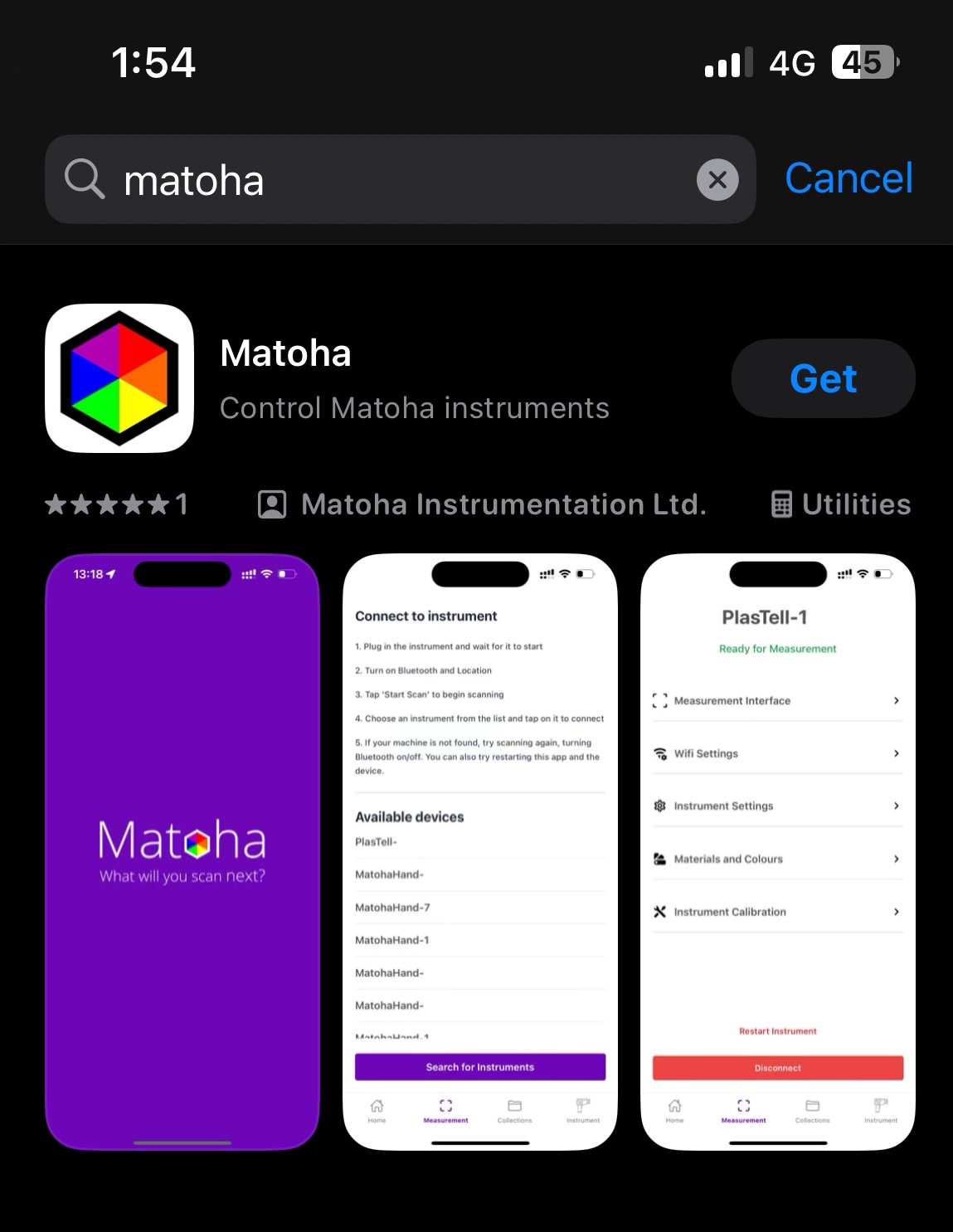  Otherwise, scan the QR code to download the app! Otherwise, scan the QR code to download the app! | Open your web browser and type in https://matoha.cloud/dashboard The desktop version works the best in Google Chrome, as it has unique ability to connect via Bluetooth. Other browsers still work, but not for connecting devices. |
Step 2 - Create an account
Phone/Tablet version | Desktop version |
Once your app is downloaded, please sign up for a new account (or log in with your credentials if you already have an account). 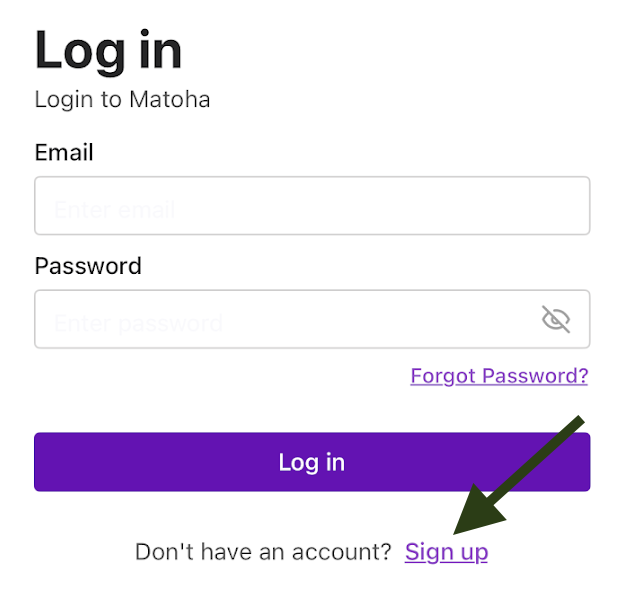 You will then be prompted to give your email address, pick a password and accept the terms of use and privacy policy. Once all your details are filled in, select "Sign up". 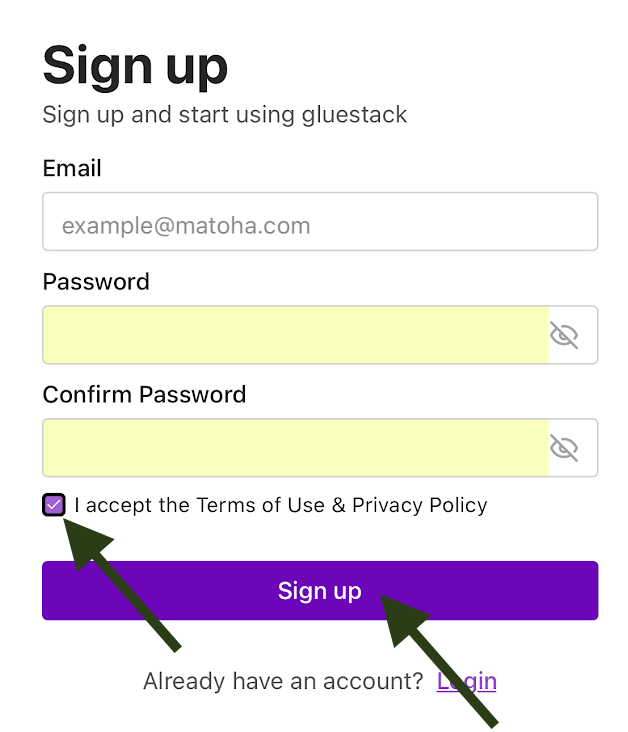 This will create your account and direct you to the Matoha App homepage. | Once you open the web browser, please sign up for a new account (or log in with your credentials if you already have an account).
You will then be prompted to give your email address, pick a password and accept the terms of use and privacy policy. Once all your details are filled in, select "Sign up". This will create your account and direct you to the Matoha App homepage. |
To see the benefits of our app, and how to increase your sorting capabilities, see the video below:
If the video does not start, please click this link.